If you need to produce a large number of repetitive documents at the same time (invoices, information letters, reports), it is always worth using bulk processing.
Principles of bulk processing
Bulk processing is always based on the selected data source.
A document is generated for each record in the data source.
All data fields in the document template are processed row by row.
The file name of each output can be assigned dynamically.
Prerequisites
You have created a data map with at least one data source.
Steps
In Microsoft Word, Excel or PowerPoint, open your document template for which you wish to carry out bulk processing.
Next, go to the dox42 ribbon and select Data Map.

dox42 ribbon
The Data Map Designer window opens and previously added data sources appear.
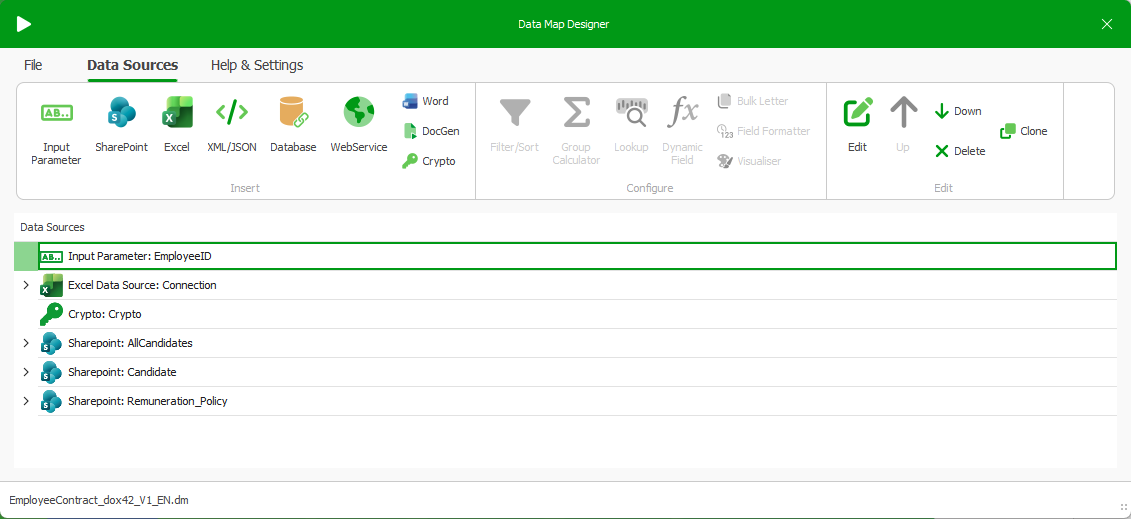
Data sources of a data map
Select the data source which is going to be the basis for your bulk processing. In our example, it is the SharePoint:Candidate data source that will create one document for each candidate record.
Tip
Make sure you have selected the correct data source.
Note
You cannot configure more than one bulk letter generation for a single data map.
In the Data Sources tab and the Configure group, select Bulk Letter.
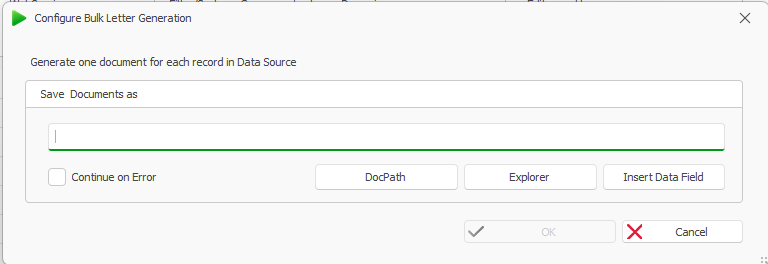
Configure Bulk Letter Generation window
The Configure Bulk Letter Generation window opens.
The following steps will guide you through configuring the bulk letter generation.
Note
Your configuration remains flexible at all times and you will be asked to check or adjust it before generating the documents.
Define the location where you want to save your documents. To do so, you can either
select the Explorer button to specify the location manually or
select the DocPath button to save your documents in relation to your template.
Example DocPath with subfolder
<%DocPath%>output
Using only <%DocPath%> will save your documents in exactly the same place as your template.
Using <%DocPath%> and adding a subfolder like output will save your documents in a subfolder of your template location.
You can also put a backslash before the folder name if your path refers to a Windows file path.
Make sure you put a slash before the folder name if your path refers to an URL path.
Important
If you are using the dox42 Service (dox42 Server or dox42 Online), the location settings you have configured here will be overridden by the Query String.
Define a file name for each of your documents.
If you want all documents to start with the same prefix, insert a prefix like report_, for example.
Then add an unambiguous suffix name so that you can tell the documents apart. Therefore, select the Insert Data Field button.
The dox42 Data Fields explorer opens.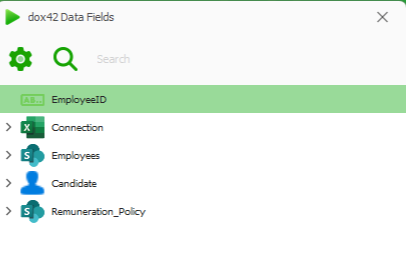
dox42 Data Fields explorer
Select a data field with a unique value like ID or title or similar.
Select the OK button.
Example DocPath with subfolder and unambiguous file name
<%DocPath%>output\report_<%Candidate.Title%>
Back in the Configure Bulk Letter Generation window, define the file format for your documents like .docx, .pdf, .html, .txt, .jpg, etc.
Example DocPath with subfolder, unambiguous file name and file format
<%DocPath%>output\report_<%Candidate.Title%>.pdf
Finally, configure the behaviour when errors occur during processing. If you wish for the processing to proceed despite an error, select the Continue on Error checkbox. If you leave the checkbox unselected, the document generation will be aborted if an error occurs.
Select the OK button to save your configuration and go back to your data map.
As soon as you generate your template, your configured settings for bulk processing will be displayed again. You can adjust them here once without having to change the configuration.
In the headline, check the number of documents to be processed to ensure that your bulk processing runs smoothly.
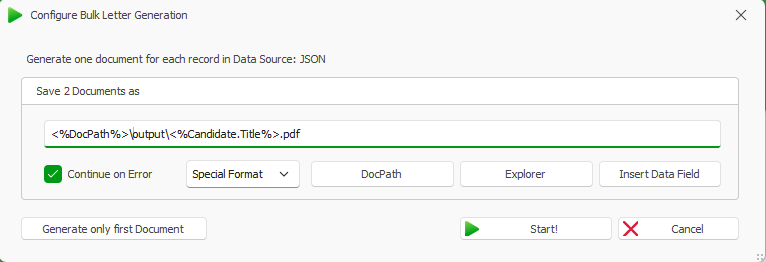
Displayed bulk letter configuration during template generation
If everything looks fine, select the OK button.
Result
Bulk processing is carried out according to your configuration.
See the section Input parameters for document generation if you wish to exclude documents from bulk processing.