To set up dox42 for the SharePoint Online App, you need the “SharePoint Online Client Extensibility Web Application Principal.” If not already existent in your Microsoft tenant, you need to set up the “SharePoint Online Client Extensibility Web Application Principal” using PowerShell.
With the commands below you can log in and then add the app using PowerShell:
Connect-SPOService -Url "https://[Tenant]-admin.sharepoint.com"
Enable-SPOTenantServicePrincipalIn order to execute the command above, a SharePoint Online PowerShell-Module is required. You can test if it already exists by executing the following command:
Import-Module -Name Microsoft.Online.SharePoint.PowerShellA red error message means the module does not exist and needs to be installed. With Windows 10 this can be done using the following command:
Install-Module -Name Microsoft.Online.SharePoint.PowerShell -RequiredVersion 16.0.8212.0 Subsequently, log into your SharePoint Online admin tenant and activate the tenant service principal with:
Connect-SPOService -Url "https://[Tenant]-admin.sharepoint.com"
Enable-SPOTenantServicePrincipal
By executing the command above “SharePoint Online Client Extensibility Web Application Principal” is being added to App registrations in your Azure Active Directory admin center as you can see in the screen capture below. This may take a few minutes.
Result
By enabling the app, “SharePoint Online Client Extensibility Web Application Principal” is being added to app registrations in your Microsoft Entra admin center. This may take a few minutes.
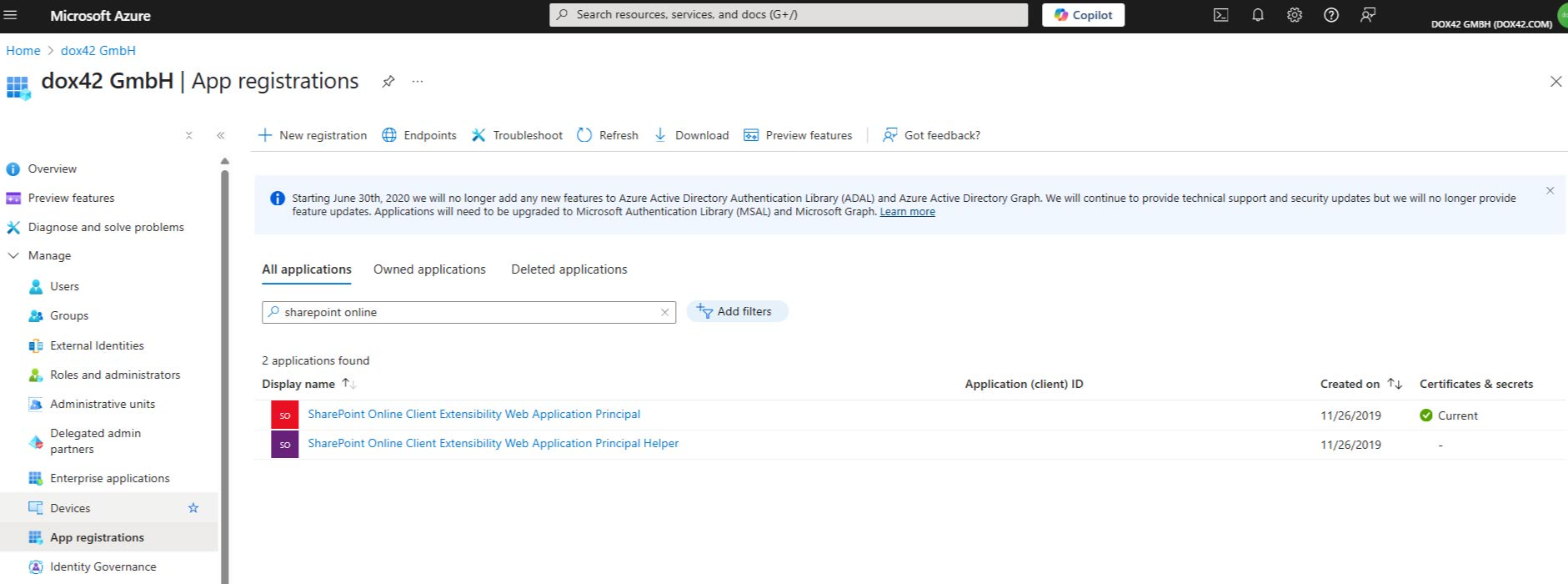
Added SharePoint Online Client Extensibility Web Application Principal