To store generated documents on SharePoint, you need to use the dox42 SharePointOutputAction with your dox42 Webservice calls. You can store your documents on any SharePoint location.
D365 CE SharePoint Integration
If you have enabled the SharePoint integration in Dynamics 365, you can access your documents directly from the files tab on your Dynamics CE record.
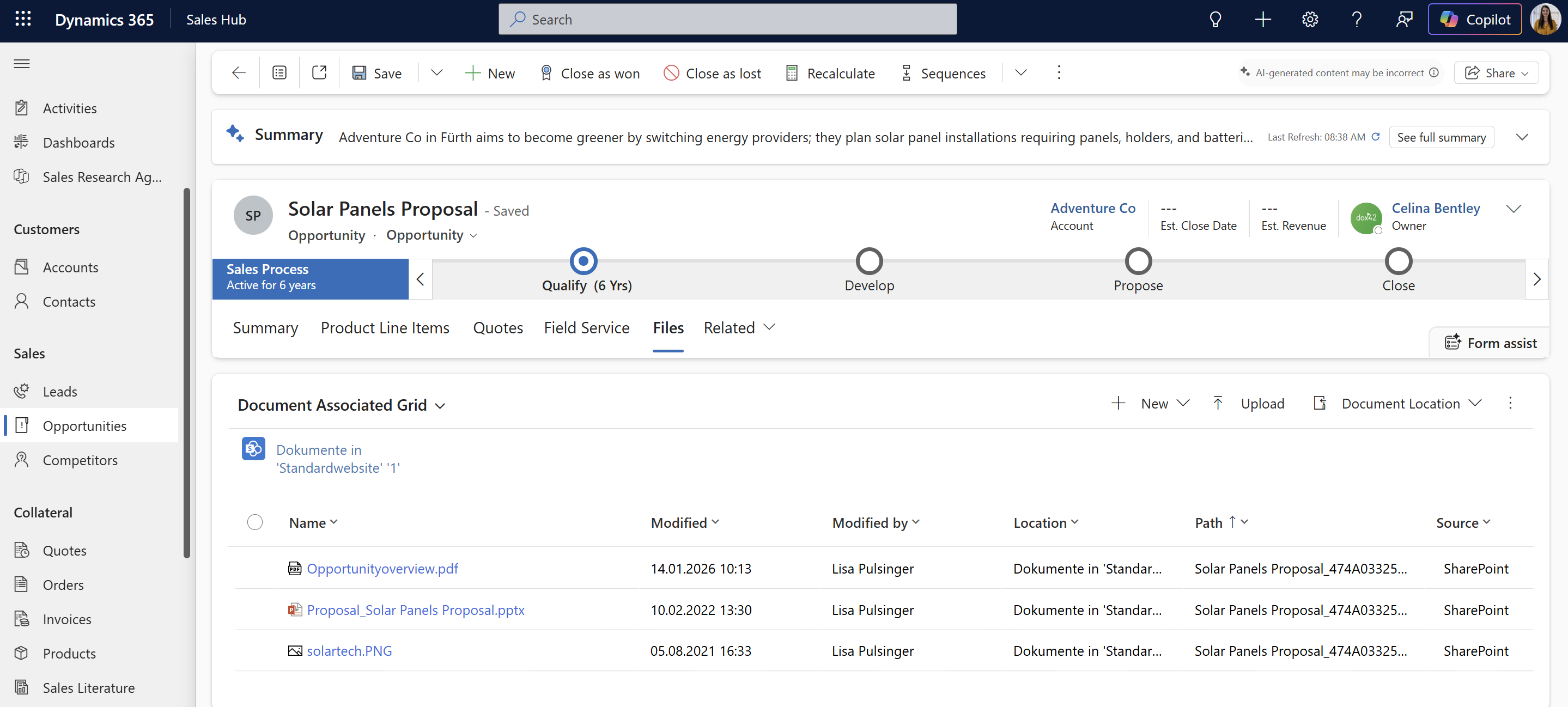
When clicking on “Open Location on SharePoint”, you can see that the path where your documents are stored, always follows this syntax: Folder Entityname/Recordname_RecordID, e. g. Opportunity/Solar Panels Proposal_474A0332531BEA11A812000D3A654F72
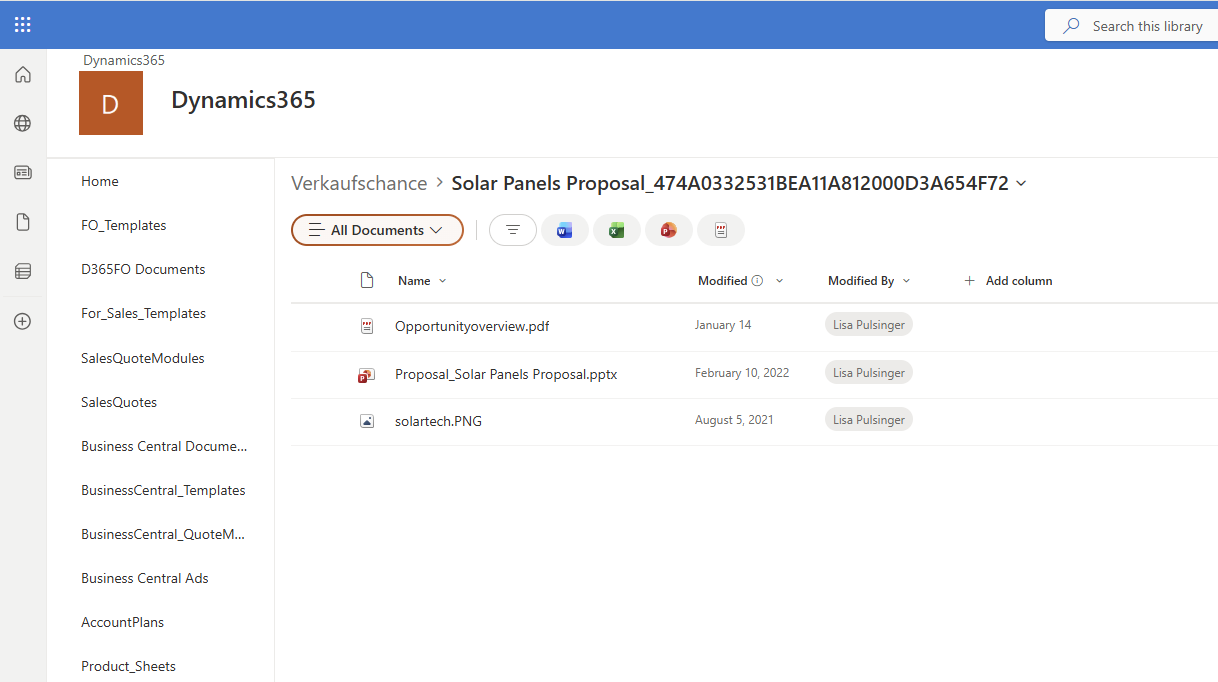
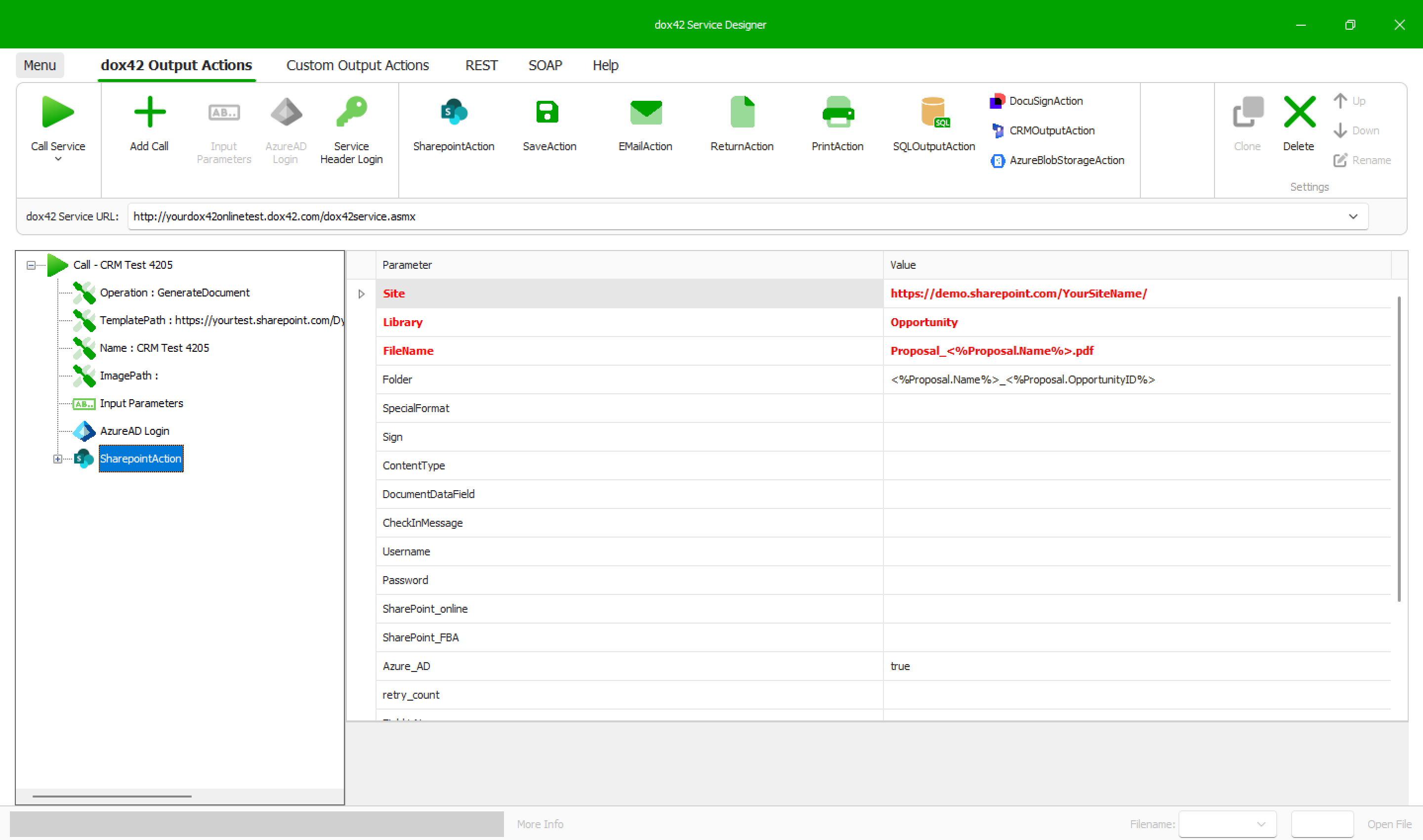
In your dox42SharePoint OutputAction querystring, you need to dynamically pass this path. This is done by using the corresponding data fields from your data map with the dox42 Syntax <%Datasource.Datafield%>, e.g. <%Proposal.Name%>_<&Proposal.OpportunityID%> for the folder parameter.
Important
Since the RecordID in D365 CE comes with hyphens and lower and upper case letters, e.g. 474a0332-531b-ea11-a812-000d3a654f72 you need to adjust the syntax to the right format.
Steps
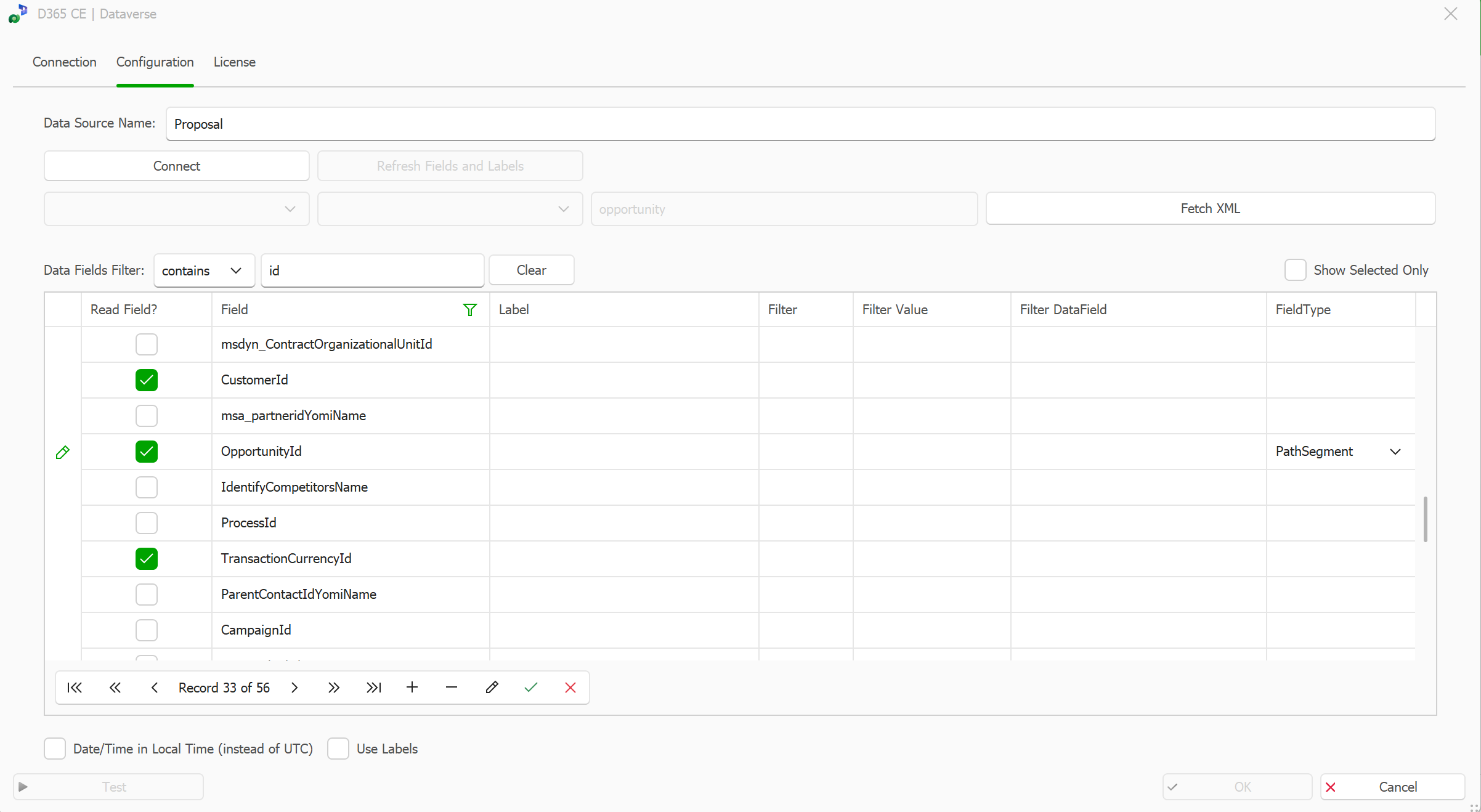
In your D365 CE data map, select the type “PathSegement” for your ID field. This automatically changes the syntax from 474a0332-531b-ea11-a812-000d3a654f72 to 474A0332531BEA11A812000D3A654F72.
Important
Ensure that you do this on a data source, where you do not need the ID field for a filter or as a data field in your document. You can either clone a data source for this purpose or select one, where the ID field is not used for anything else.
When building your dox42 query string, use the ID field for which you selected the FieldType “PathSegment” in the path for your folder name. You can do this via the dox42 Service Designer.
Follow the steps described in Integrating dox42 into your Dynamics CRM or D365 CE via dox42 solution to trigger the generation of the call.
Additional Support
You can watch the video tutorial How to store documents on the D365 CE Standard SharePoint location for a detailed step-by-step video guide on this topic.
Result
Your documents are stored on the SharePoint library associated with the selected record in D365 CE.