---
title: "Configuration options for the web.config file"
slug: "configuration-options-for-webconfig-file"
tags: ["reference", "dox42 Server V5.0.2.6"]
updated: 2025-07-02T08:03:18Z
published: 2025-07-02T08:03:18Z
canonical: "help.dox42.com/configuration-options-for-webconfig-file"
---
> ## Documentation Index
> Fetch the complete documentation index at: https://help.dox42.com/llms.txt
> Use this file to discover all available pages before exploring further.
# Configuration options for the web.config file
This article describes further configuration options within the **web.config** file.
## App settings
Find the [configuration parameters in appSettings](/v1/docs/configuration-parameters-in-appsettings) within the `<appSettings>` section of the **web.config** file.
## Custom Data Sources
Custom data sources are registered in a separate section called `customDataSources`.
```xml
```
## Custom Output Actions
Custom output actions sources are registered in a specified section called `customOutputActions`.
```xml
```
## Trusted template locations
Trusted template locations are registered in a specified section called `trustedTemplateLocations`.
```xml
```
## Log settings
Configure log settings in the **NLog.config** file. For a complete documentation of the logging framework NLog see [the NLog documentation](https://nlog-project.org/documentation/).
## CORS Configuration
If a web application calls the dox42 Server, e.g. via Javascript XMLHttpRequest under a different URL than the application itself, you might get a Cross-Origin Resource Sharing (CORS) error.
### Example
Calling web application:`https://yourcompany.sharepoint.com/yoursite`
dox42 Server: `https://dox42server.yourcompany.com`
To enable this scenario, you could add a `customHeaders` section to your **web.config** file:
```xml
```
Fore more information, see [https://developer.mozilla.org/en-US/docs/Web/HTTP/CORS](https://developer.mozilla.org/en-US/docs/Web/HTTP/CORS) and [Fetch](http://www.w3.org/TR/cors/).
## Microsoft Entra ID Access
This is necessary to store dox42 templates and data maps on Microsoft SharePoint Online.
### ConfigSection
```xml
. . .
```
### Entra ID Section
> [!NOTE]
> Microsoft Entra ID and Microsoft Azure AD
>
> In 2023, Microsoft has renamed Azure Active Directory (Azure AD) to Microsoft Entra ID. Both names refer to the same platform.
```xml
```
## Custom Error Messages Sample
In case you edit this file using a text editor, please be sure to save in UTF-8 encoding.
```xml
Error uploading file http://mysharepoint
SharePoint-farm not responding, please contact your administrator
```
## Hyphenation Dictionaries Sample
To use automatic hyphenation with the dox42 Word Add-In save a file named **HyphenationDictionary.config** to **C:\Users\<>\AppData\Local\dox42V1**.
The file should use this structure:
```xml
de-CH
C:\dox42Server\hyph_de_CH.dic
```
## Maximum size of request or time-out
Should you be sending large requests to dox42, return large files or start a bulk letter, it might become necessary to increase request size or time-out (the default ASP.NET time-out is 90 sec. After that, a longer call will be aborted by the IIS).
1. Configure this in the **web.config** file as follows:
```xml
```
- When you work with the https method POST (base64) and you are getting the error message “413 Request entity too large”, you can change the `Maximum allowed content length (bytes)` parameter on the IIS server.
- In ISS, navigate to **Request Filtering**, select **Edit Feature Settings** and change the maximum allowed content length from 30000000 to 2147483647.
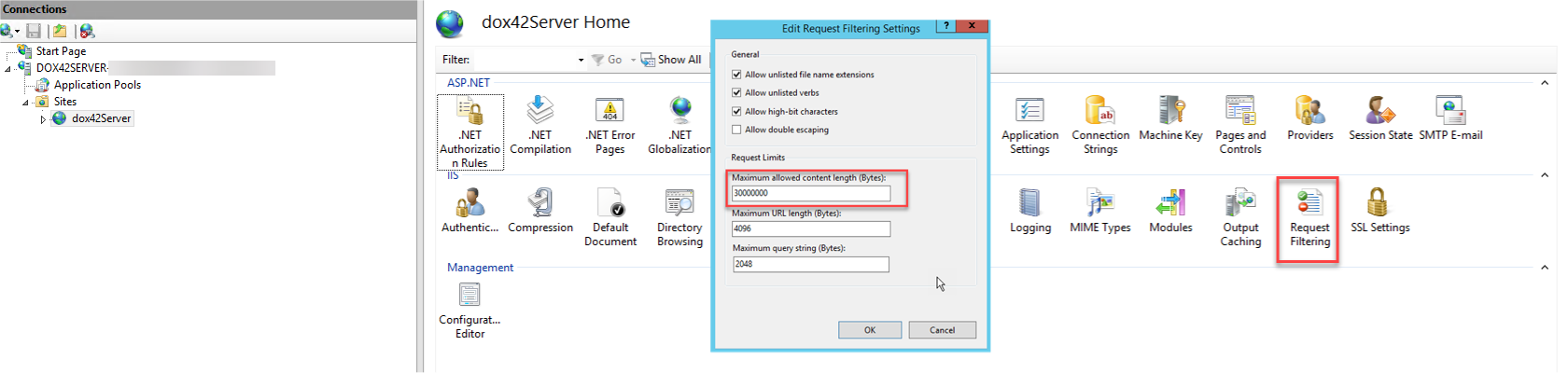
Editing request filtering settings with maximum allowed content length highlighted
## License Activation
Enter the license key in the **web.config** file as `LicenseKey`. On the first call the dox42 Server will contact the dox42 license server to activate your key and write a license file (*.lic) in the folder indicated under `LicenseFilePath`.
> [!NOTE]
> Note
>
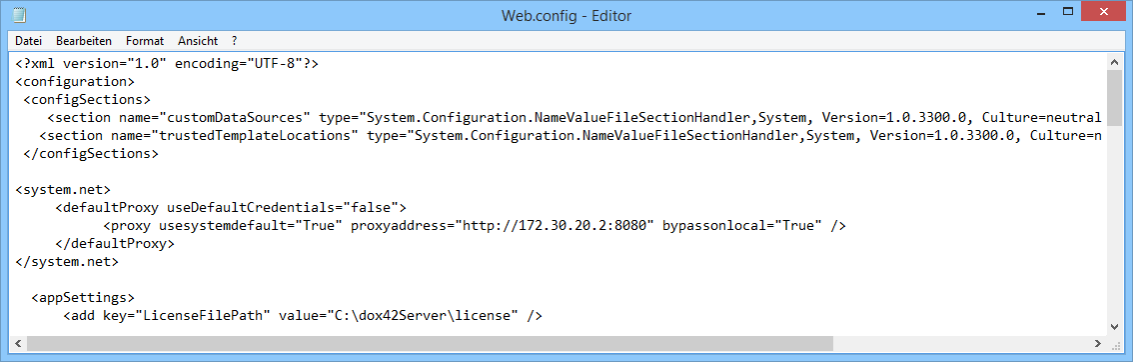
> - If the Server is only allowed to access the internet via Proxy, the entry in the **web.config** file could help.
>
> 
>
> Configuration settings for a web application, including authentication and license information
> - In case you cannot establish an internet connection from your server, please contact support@dox42.com. We will provide you with your license file.