In this step, you will establish a connection to your SAP system using the OData protocol. This connection allows the application to access and retrieve data from SAP in real time.
To set up the connection, you’ll need to provide the required authentication details — such as your SAP username, password, and the SAP Gateway URL. Once connected, you’ll be able to fetch available entities and work with SAP data in your document.
Establishing a successful connection is the first and essential step before applying filters, selecting properties, or generating documents.
Prerequisites
An activated dox42 Word, Excel or PowerPoint Add-In.
Steps
In Microsoft Word, Excel or PowerPoint, go to the dox42 ribbon and select Data Map.

dox42 ribbon
The Data Map Designer window opens.
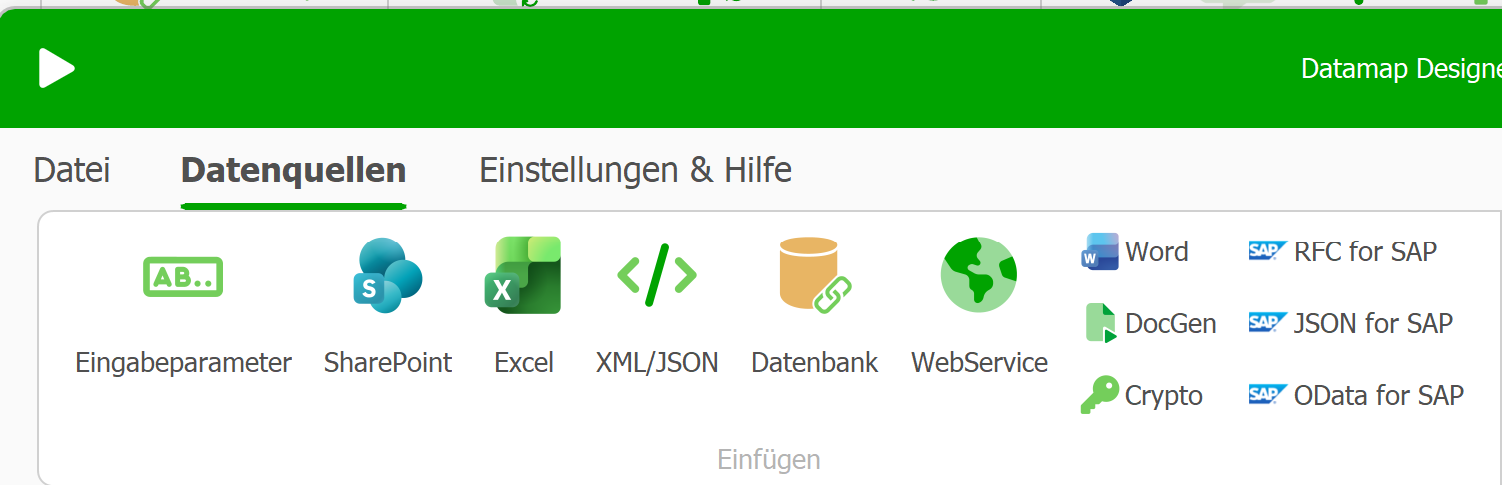
Data Map Designer
Select the OData for SAP® data source.
The OData for SAP® window opens.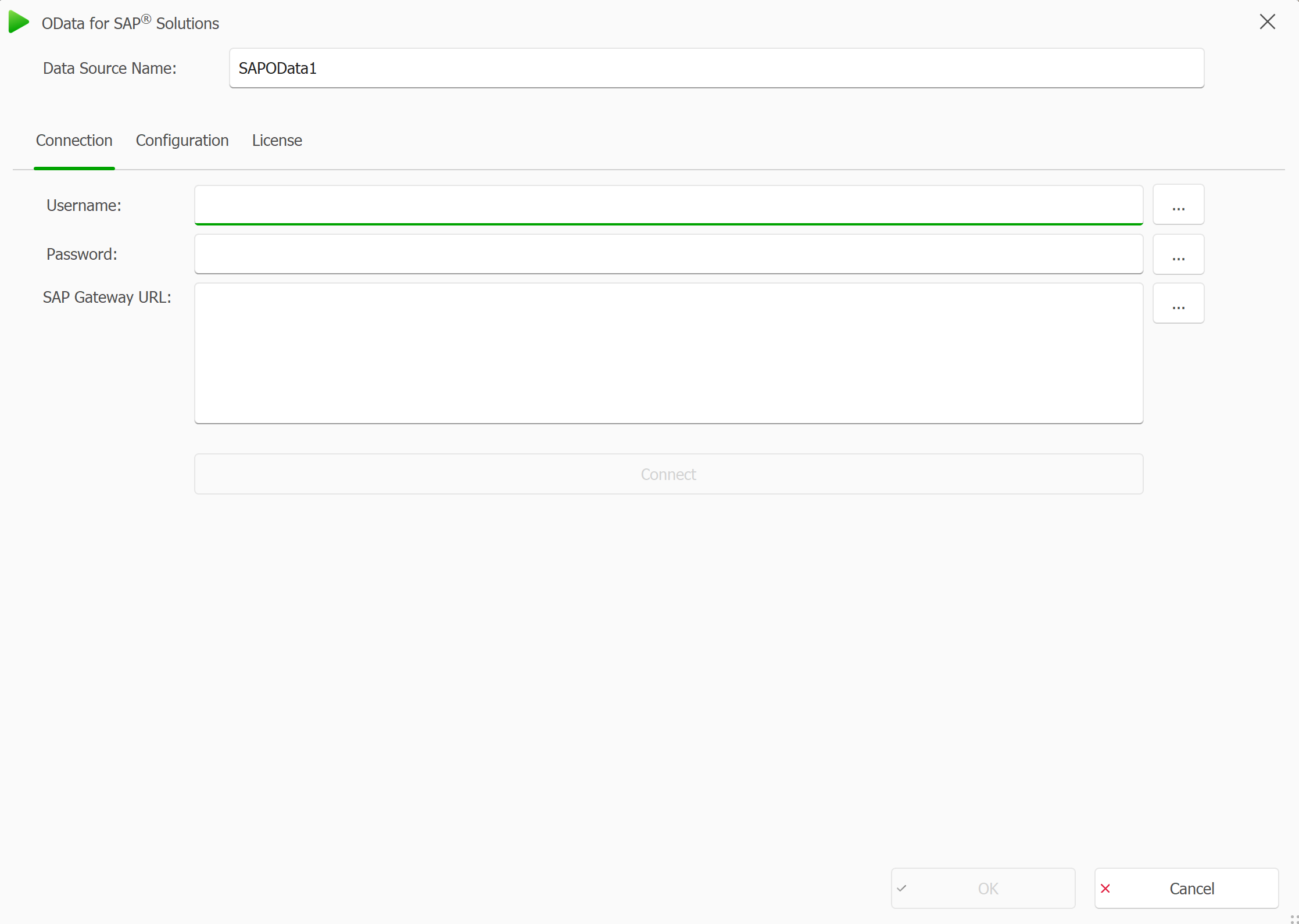
Connection tab in the OData for SAP® window
Enter the required connection details to configure the connection:
either directly into the text fields or
load them dynamically, for example from your Crypto or from an Excel connection file,by selecting the three dots button next to the text fields.
Required Fields for OData for SAP connection
To connect to your SAP system via OData, enter the following required details:
Username – Your SAP username
Password – Your SAP account password
SAP Gateway URL – Enter your SAP OData service root URL (e.g.,
https://<host>:<port>/sap/opu/odata/sap/<SERVICE_NAME>).
Confirm SAP Connectivity.
Select the Connect button to test whether the data source can successfully establish a connection with your SAP system.
If the connection is successful, you will be automatically redirected to the Configuration tab.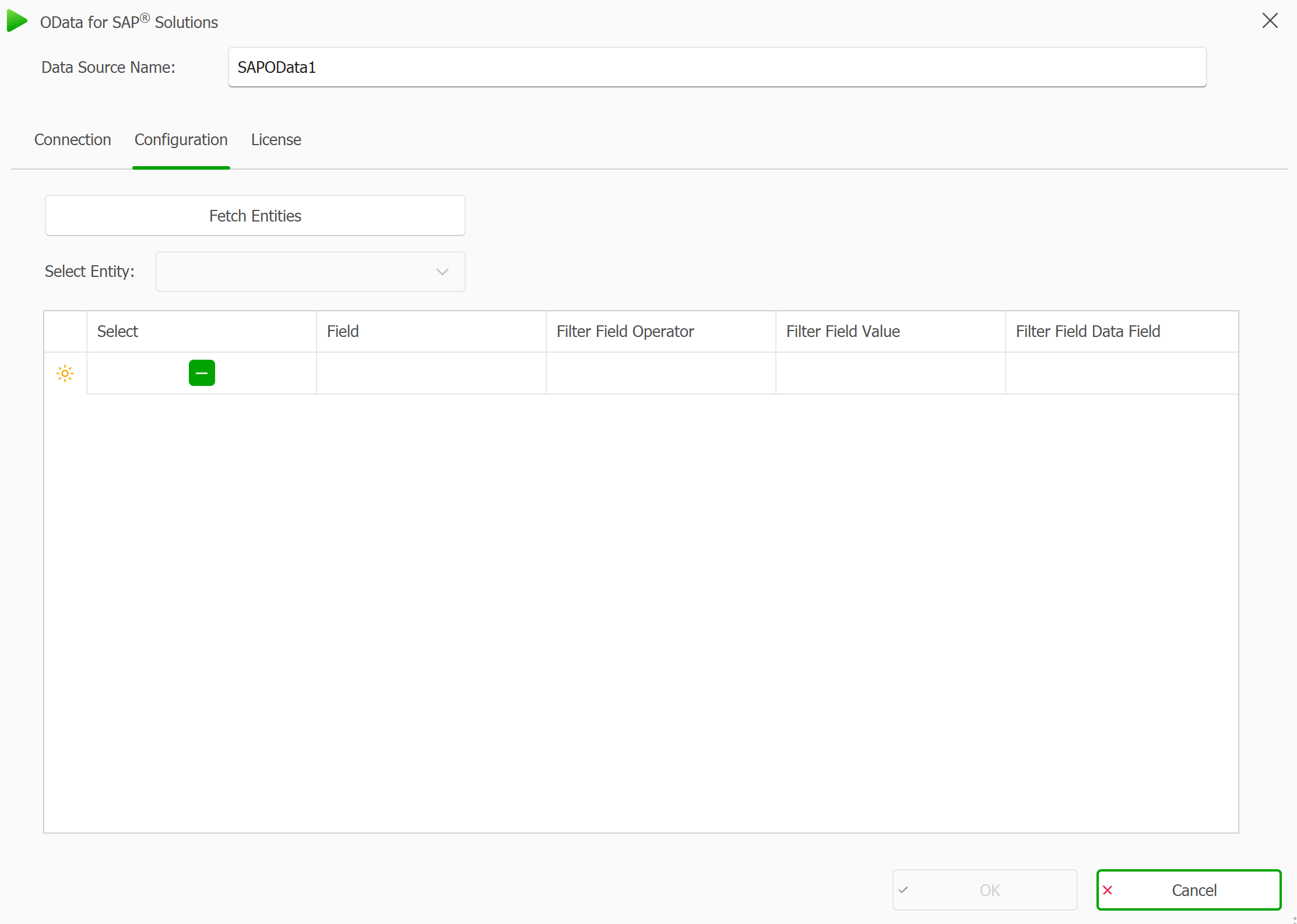
Configuration tab in the OData for SAP window
How data is retrieved
When you click Connect on the Connection tab or Fetch Entities on the Configuration tab, the data source sends a request to
<SAP Gateway URL>/$metadata. This retrieves the service metadata, which contains a list of all available entities and their properties.Connection failed? Possible causes:
If the connection to the SAP system fails, an error pop-up will show up with the error message. It could be due to one of the following reasons:
Connection Error:
The application could not reach the SAP server. This usually indicates that the SAP Gateway URL is incorrect, the server is offline, or network access is blocked.Server Error (e.g., 400, 401, 403):
The SAP server has been reached, but it rejected the request. This may happen if:Your username or password is incorrect (401 Unauthorized)
The request is malformed or incomplete (400 Bad Request)
You do not have permission to access the requested resource (403 Forbidden)
Result
You have connected the OData for SAP® data source to your SAP OData server.