Create a dynamic field to calculate, combine or transform values using Visual Basic code.
This straightforward example shows how to create a dynamic field that replaces specific characters in the value of an existing data field. To be more precise, the letter a is to be replaced by the letter X.
Note
The main purpose of this article is to explain how to create dynamic fields, without going into the wide range of possibilities offered by dynamic fields.
In Microsoft Word, Excel or PowerPoint, open your document template.
Next, go to the dox42 ribbon and select Data Map.
dox42 ribbon
The Data Map Designer window opens and previously added data sources appear.
Select an existing data source where you want to add the dynamic field.
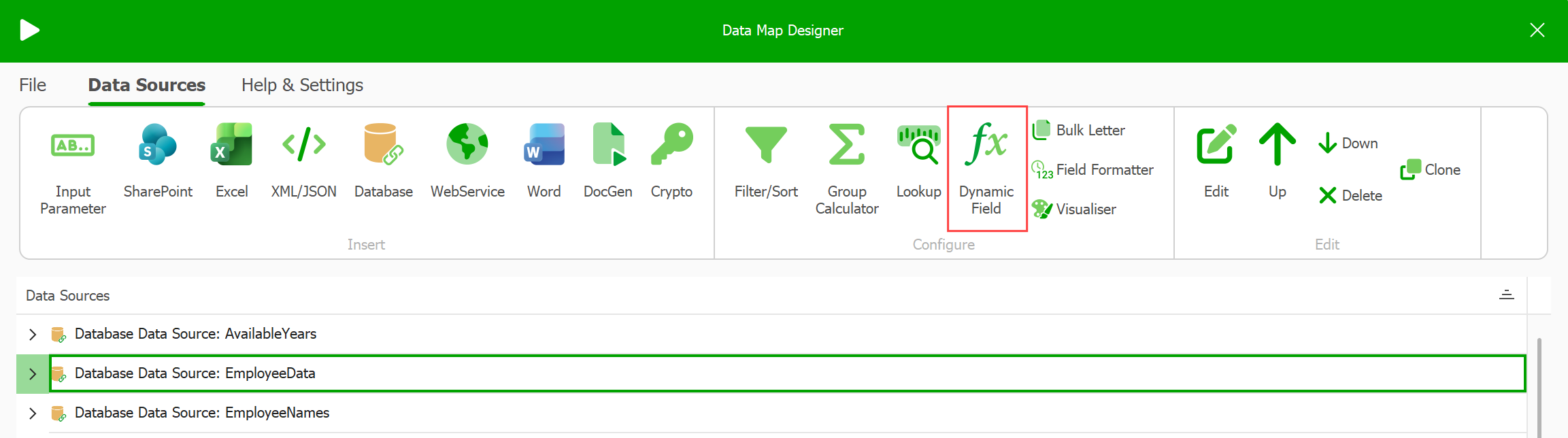
On the Data Sources tab, in the Configure section, select the Dynamic Field button.
Dynamic Field button
The Dynamic Field window opens.
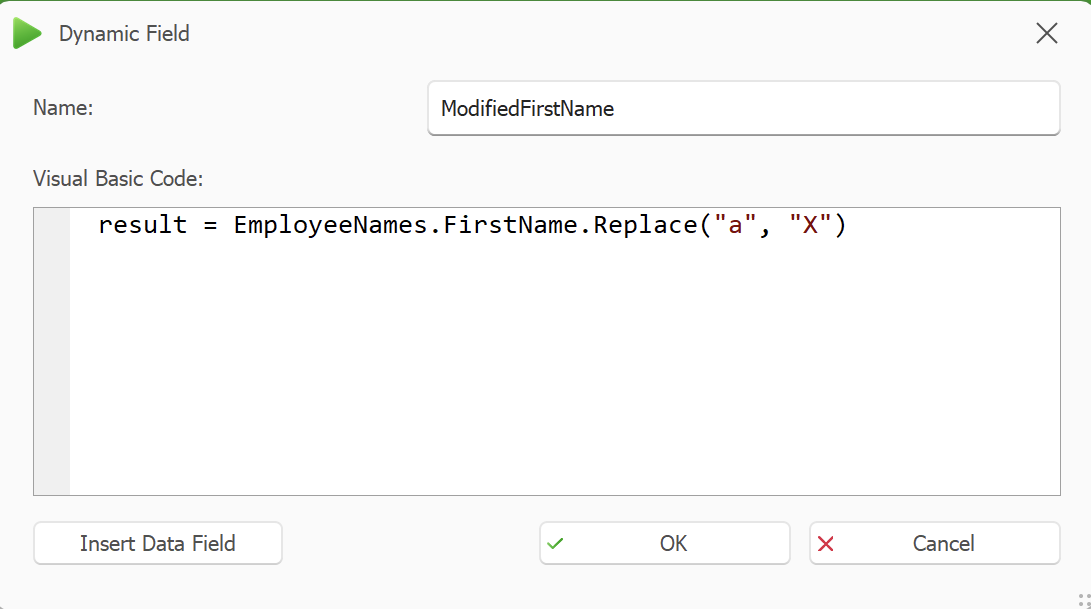
In the Dynamic Field window, set the following:
In the Name field, enter a name for the dynamic field, for example ModifiedFirstName.
In the Visual Basic Code field, place the cursor after the equals sign and click Insert Data Field.
The dox42 Data Fields explorer opens.
Select the text data field whose value you want to modify.
dox42 inserts the data field reference at the current cursor position.
Append .Replace("a", "X") to the inserted data field reference. This code replaces every lowercase a in the first name with an uppercase X. For example, Alana becomes AlXnX.
Dynamic field settings
Select OK to save your changes.
Result
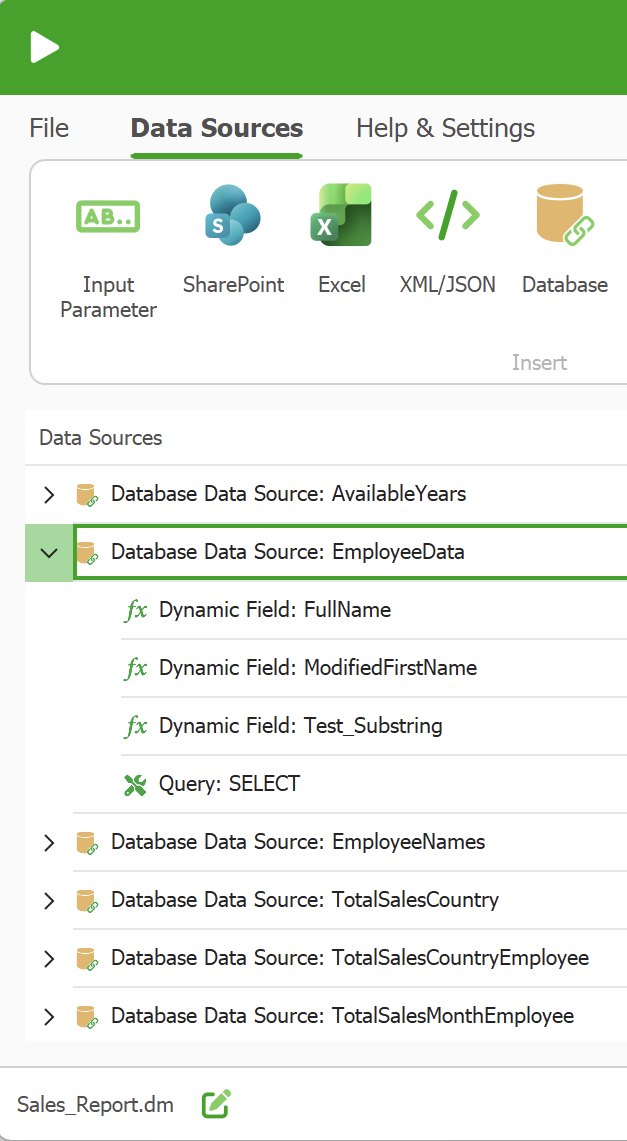
The dynamic field has been added to your data source. The dynamic field is now available in the dox42 Data Fields explorer alongside the other data fields. To use it in a document template, just insert it using drag and drop, see Inserting data fields.
Tip
Expand the data sources to see at a glance where dynamic fields have been added.