---
title: "Registering the dox42 App for d.velop on the dox42 Server"
slug: "installing-alpin-dox42-app-on-the-dox42-server"
tags: ["d.velop", "task"]
updated: 2025-07-09T06:41:53Z
published: 2025-07-09T08:35:17Z
canonical: "help.dox42.com/installing-alpin-dox42-app-on-the-dox42-server"
---
> ## Documentation Index
> Fetch the complete documentation index at: https://help.dox42.com/llms.txt
> Use this file to discover all available pages before exploring further.
# Registering the dox42 App for d.velop on the dox42 Server
> [!NOTE]
> Note
>
> The setup in a dox42 Online environment is handled by dox42 itself.
## Prerequisites
- You have [installed dox42 Server](/v1/docs/installing-dox42-server-on-a-windows-server).
- Ensure that d.velop documents can reach the dox42 Server via the preconfigured port.
**IMPORTANT:**
1. Copy the following files into the **bin** directory of the dox42 Server:
1. **CustomOutputD3REST.dll**
2. **CustomOutputD3REST.pdb**
3. **AlpinDvelopDataEngine.dll**
> [!NOTE]
> Note
>
> - The program library **CustomOutputD3REST.dll** is provided by Alpin and can be requested via support@alpin.it
> - A license key is provided directly by dox42 and must be extended in the **web.config** file: `<add key="dox42D3LicenseKey" value="0000000-0000-0000-0000-0000000" />`
2. Register the dox42 Server d.velop Module and the Custom Output Action in the **web.config** file of your server.
1. Refer to the new program library.
2. If the section is already filled with references, keep them and only add the new entry:
```xml
```
3. To ensure everything is loaded correctly:
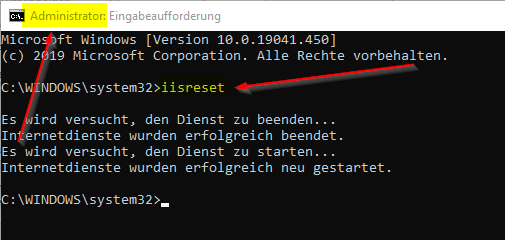
- execute `iisreset`
- or restart your dox42 server directly.
## Result
You have registered the dox42 Server d.velop Module and can now use it with dox42 Server.