In this step, you will load the content of a JSON using the JSON for SAP® data source. This will allow you to select which properties you want to see and apply any filter.
To retrieve data from a JSON body and apply filters, you must include the body section of the JSON in the designated JSON text field. After establishing the connection, you will be able to access available objects and filter the JSON data within your document.
Loading the content of a JSON file is the first and essential step before applying filters or generating documents.
Prerequisites
An activated dox42 Word, Excel or PowerPoint Add-In.
An activated dox42 Integration for SAP® Solutions.
Important
The dox42 JSON for SAP data source is intetended to be used with the dox42 Integration for SAP® Solutions.
Steps
In Microsoft Word, Excel or PowerPoint, go to the dox42 ribbon and select Data Map.

dox42 ribbon
The Data Map Designer window opens.
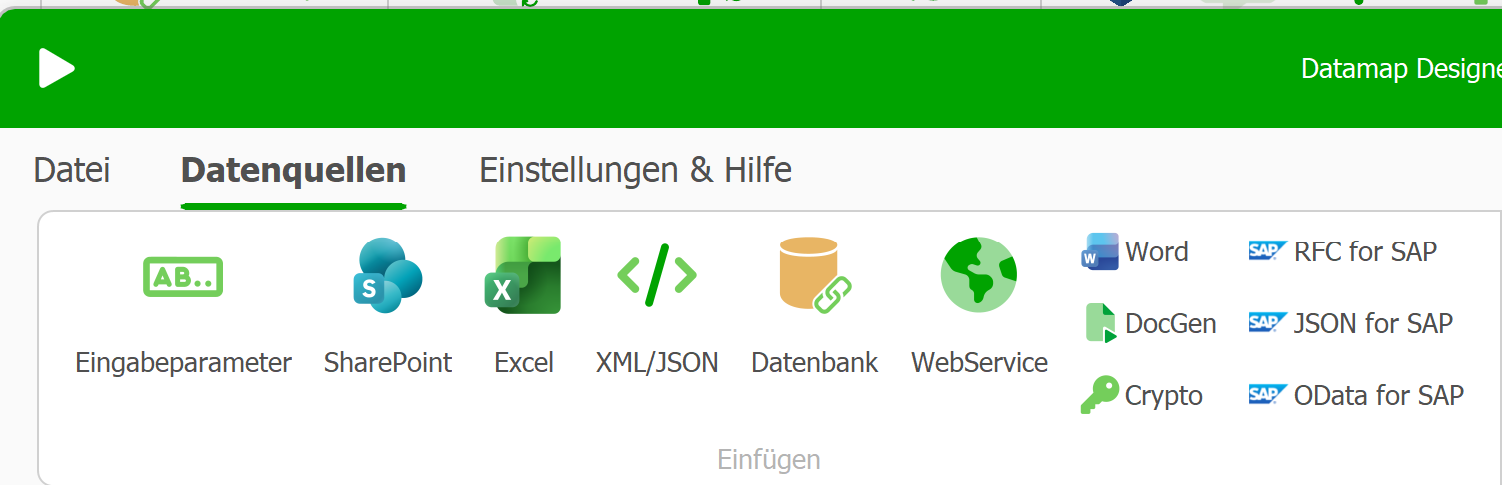
Data Map Designer
Select the JSON for SAP data source.
The JSON for SAP® data source window opens.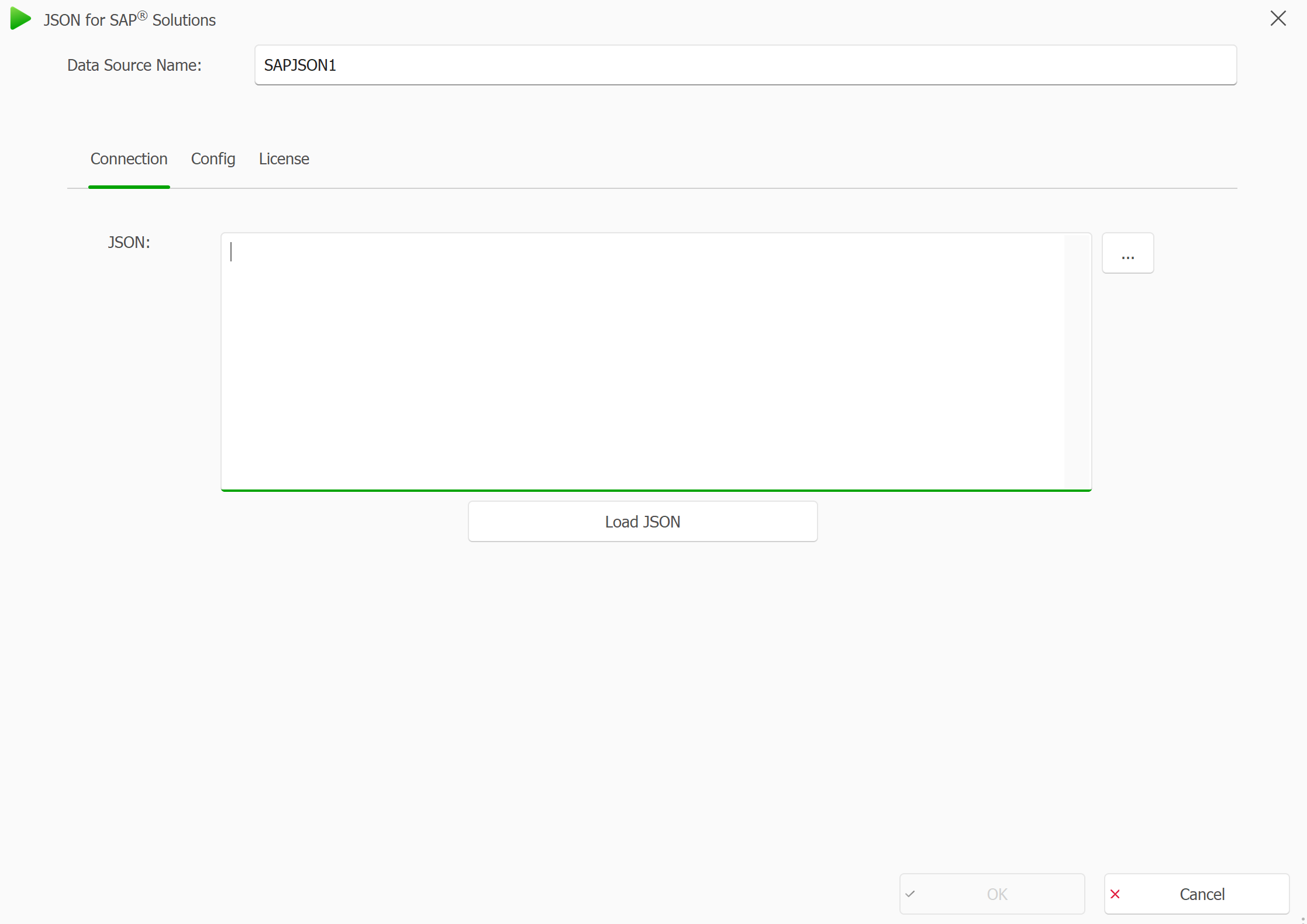
Connection tab in the JSON for SAP Datasource window
Either paste your JSON body directly into the text field or include an input parameter as the source for the JSON.
To include an input parameter, simply click on the dotted button next to the text field. This action will open a new window where you can choose the JSON body input parameter. After making your selection, a reference to the input parameter or data source will be added automatically. For further details on how to create, configure, and utilize input parameters, please refer to the information provided here.
Empty JSON text field in the Connection tab
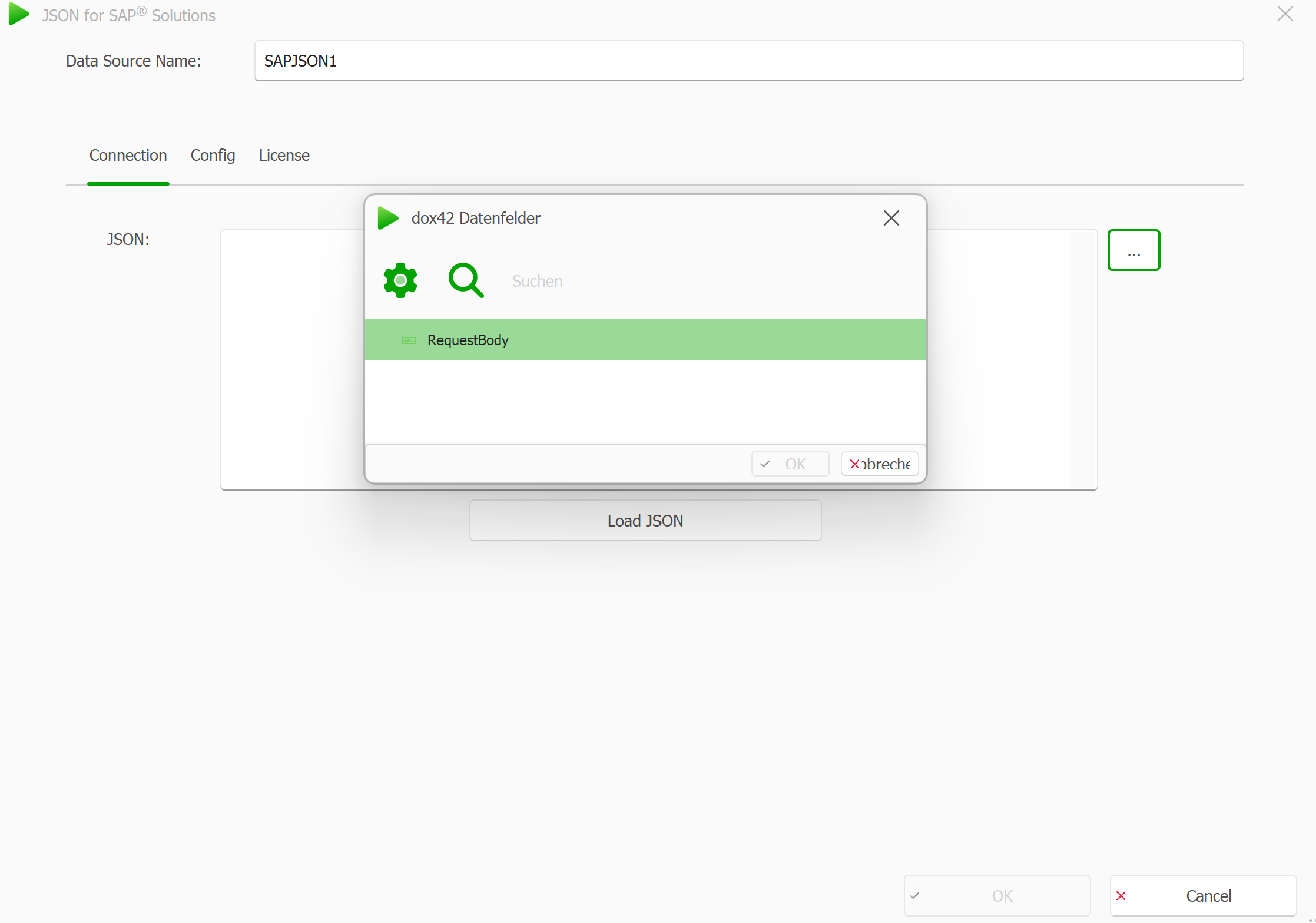
New window displayed after clicking the dotted button
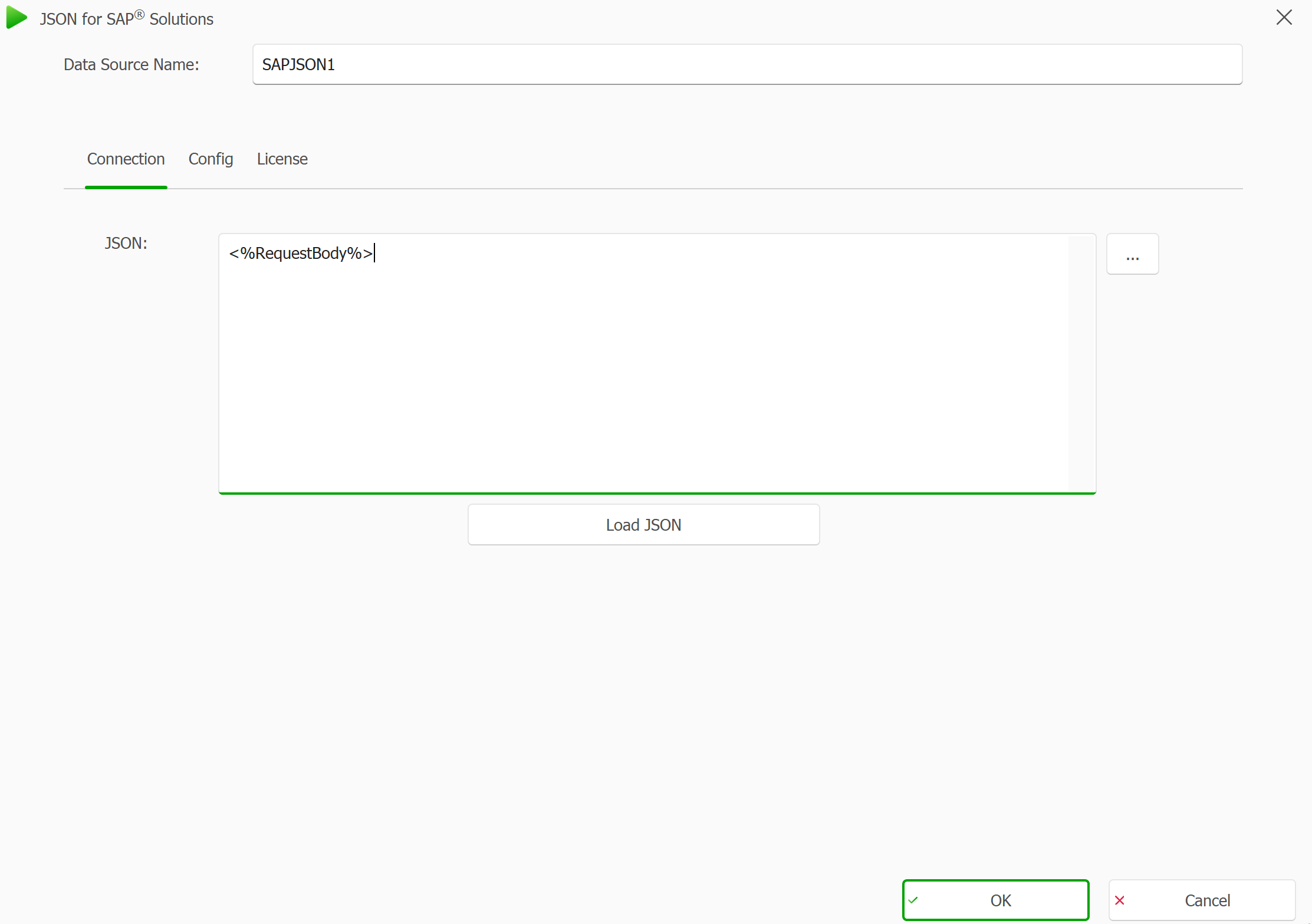
Added reference
Naming your JSON data sources
Since you'll be repeating step 2 multiple times, it's helpful to give each data source a clear, descriptive name. This makes it easier to identify which data source corresponds to each level of the JSON body.
Select the Load JSON button.
If the JSON for SAP can successfully read the input, you’ll be automatically taken to the Config tab. There, you’ll see all the levels of the JSON structure that were detected.Field Types Glossary
Here are some common field types you’ll see:
NestedObject: these are sub-JSON that can be selected as JSON bodies in a new JSON for SAP data source instead of an input parameter.
Array: similar to NestedObject, this also can be selected as JSON bodies in a new JSON for SAP data source instead of an input parameter, but this is a JSON Array containing multiple objects that are the same type but with different data.
String: Text
Integer: Number
.png)
Config tab with JSON objects visible on the current level
Select the properties to include as data fields or as Input JSON. To do this, select the checkbox in the Select column for each row (property) you want to include as a data field in your document/Input JSON in a new JSON for SAP data source.
Config tab with DATA and ENVIRONMENT objects selected
Repeat for deeper JSON levels.
Continue repeating step 3 to drill down through the JSON structure. Repeat this process until you reach the specific level that contains the data you need.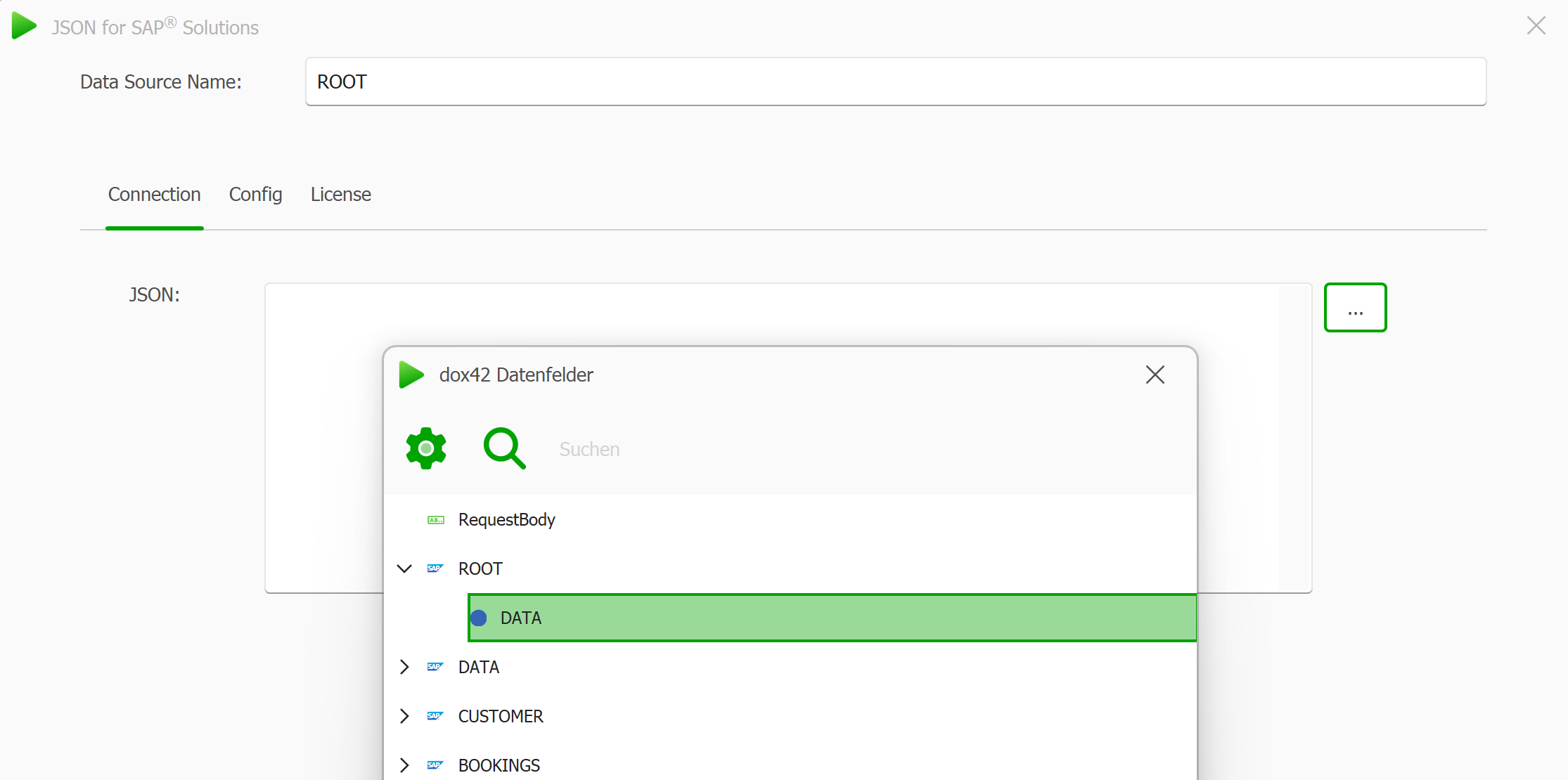
Example: Drilling down DATA sub-JSON
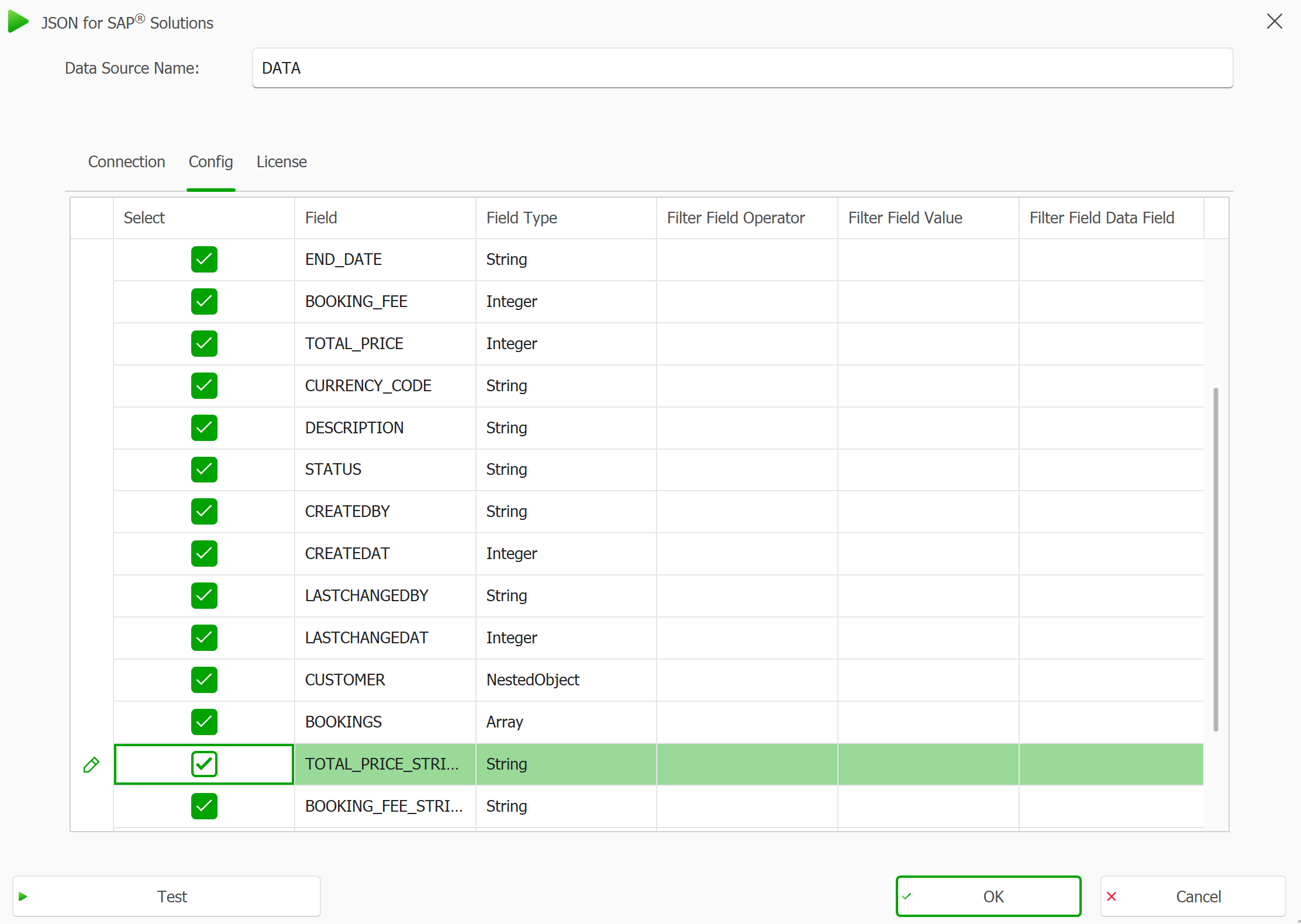
Data Object properties and their types
(Optional) Test JSON for SAP®.
Click the Test button in the bottom-left corner to preview the current result based on your selected entity. This step is optional and may take some time, depending on the complexity of the data and server response time. Use it to verify that the entity returns the expected structure and values before continuing. You will be able to see the properties and their sub-JSON or value..png)
Example of how it will look like
Result
You have parsed the content levels of your JSON via the JSON for SAP® data source.