If generating a report takes too long, there are several things you can check to improve the performance.
Steps
Check the request duration time in the dox42 Audit log to know the printing time of each print medium and which report has a bad performance.
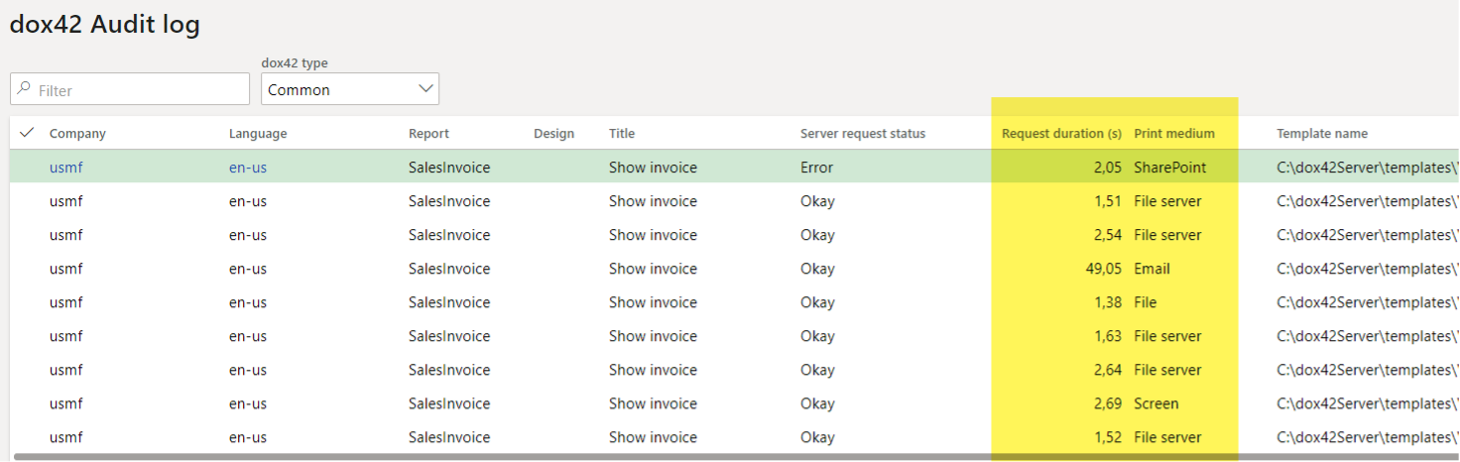
dox42 Audit log
Check on the following factors that can influence the performance of a report:
Using D365 FSCM Entity data sources (previously named OData data sources), the responding time from D365 FSCM is longer than for D365 FSCM Report. Ideally, data providers or queries in D365 FSCM are enhanced instead of using a D365 FSCM Entity data source.
The POST (Base64) HTTP method is recommended to call the dox42 server.
The right dox42 server is actually called in case of the multi-server landscape deployed. This information is available in the dox42 audit log.
Parallelism: The dox42 server processes all requests sequentially.
Nested filtering of data sources like filtering one data source and using the output of the filtered data source to filter another data source.
Deactivate unnecessary fields in the Configure Metadata window of the dox42 Data Map in the document template. This resulted in noticeable performance gains in several tests.
Extend the report logic in D365 FSCM as much as possible instead of using any grouping, transformation, or calculation logic in the dox42 template.
In case of timeouts, please refer to the dox42 Server documentation on timeout settings of the IIS.
Ensure that the cleanup dox42 historical data batch job is set up.
If Archive setup for the report is used, you can activate Asynchronous archiving.