Caching printed reports enables you to reprint already printed documents without generating them once again on the dox42 Server. This can significantly speed up the document printing process in some business-critical scenarios. If the report with the same set of the report parameters has once been printed, this report serialized data and/or generated report files can be taken from the cache when the report is printed next time.
Important
This is a beta version of the caching functionality. It is not guaranteed that the caching works properly out of the box for absolutely all the reports (standard or custom). You can test and use this feature at your own risk – but at the same time, using this feature can be very powerful, you can achieve a significant performance boost in your business-critical scenarios where standard performance does not meet your requirements. Nevertheless, the use of standard performance (cache disabled) remains recommended.
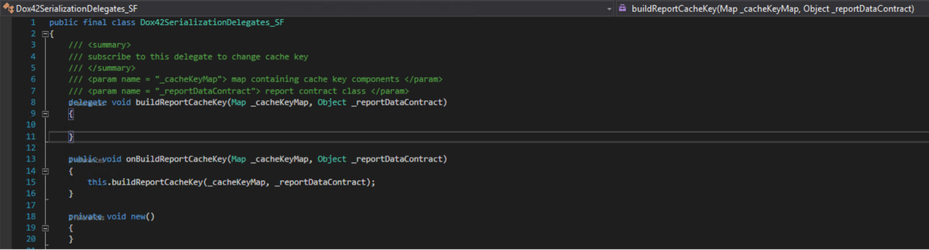
This feature should only be used as a last resort when all other possible optimizations have already been implemented. If you face issues with this feature getting wrong cached reports, you can check and adjust the report caching key (used to search and extract report serialized data and generated report files from the cache) subscribing to this delegate (development needed):
Steps
In D365 FSCM, go to System administration > Setup > dox42 > dox42 parameters.
Select the desired the Report/Entity in the column Cache enabled.
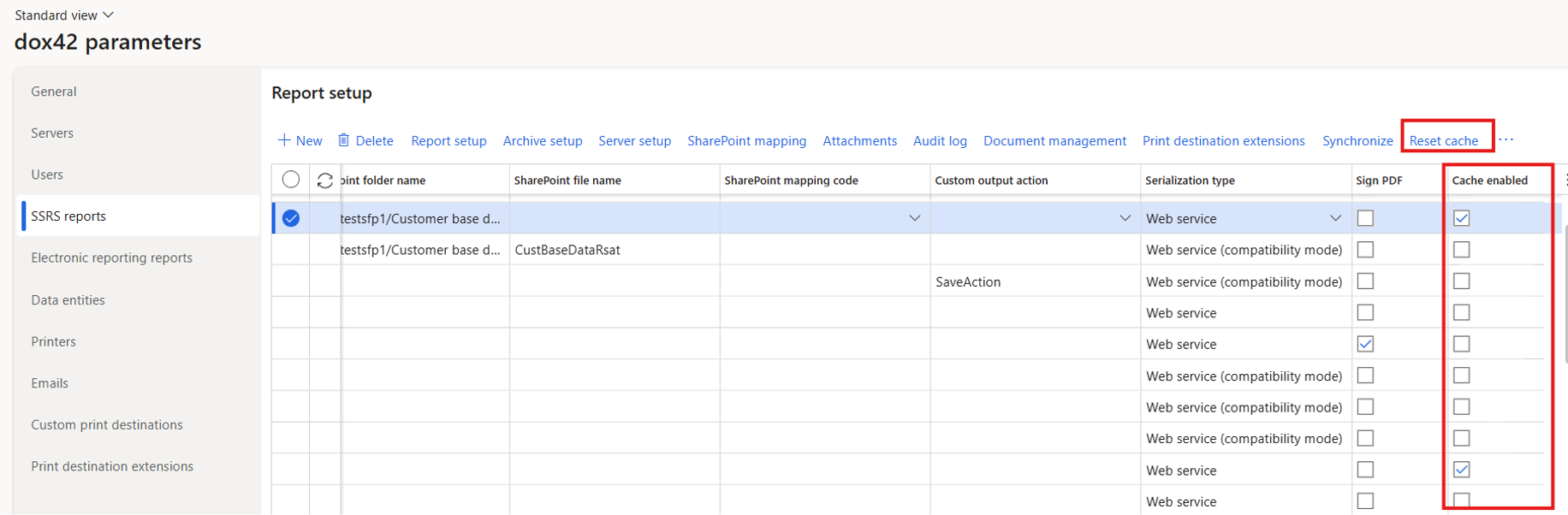
Optional: If you click on Reset cache the existing cache will be cleared.
Result
You have enabled caching for printed reports.