If you are using SharePoint Online as document template storage and want to open document templates directly from SharePoint Online, you need to set-up your Entra ID Login. This is needed to obtain the necessary authentication for the download of the template and data map.
Prerequisites
Microsoft SharePoint Server 2013 Client Components SDK is installed on your computer. You may download it free of charge directly from Microsoft: http://www.microsoft.com/en-us/download/details.aspx?id=35585
You have completed the app registration in Entra ID.
Steps
In Microsoft Word, Excel or PowerPoint, go to the dox42 ribbon and select Entra ID Login.

dox42 ribbon
Enter the property values of your app registration into the following text fields:
SharePoint Site URL
Tenant ID
App ID
Mobile / Desktop Redirect URI
If you are a dox42 partner and working with Microsoft accounts from multiple Azure tenants on your computer: select the Always Ask entry from the Login Mode dropdown.
Select the MSAL entry from the Preferred Entra ID Authentication Library dropdown.
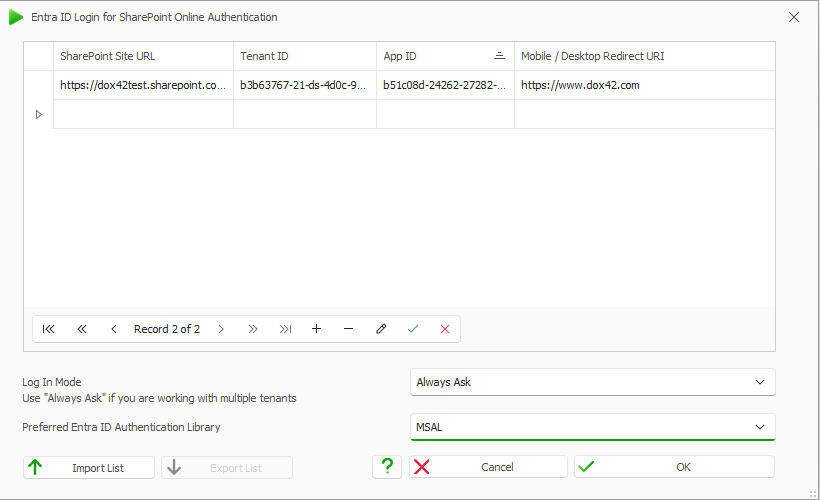
Entra ID login for SharePoint Online Authentication window
Select the OK button.
Result
You have connected your dox42 Add-In with SharePoint Online.
You can open your document templates directly from SharePoint Online by selecting the three dots next to your template. Click Open, then Open in app.
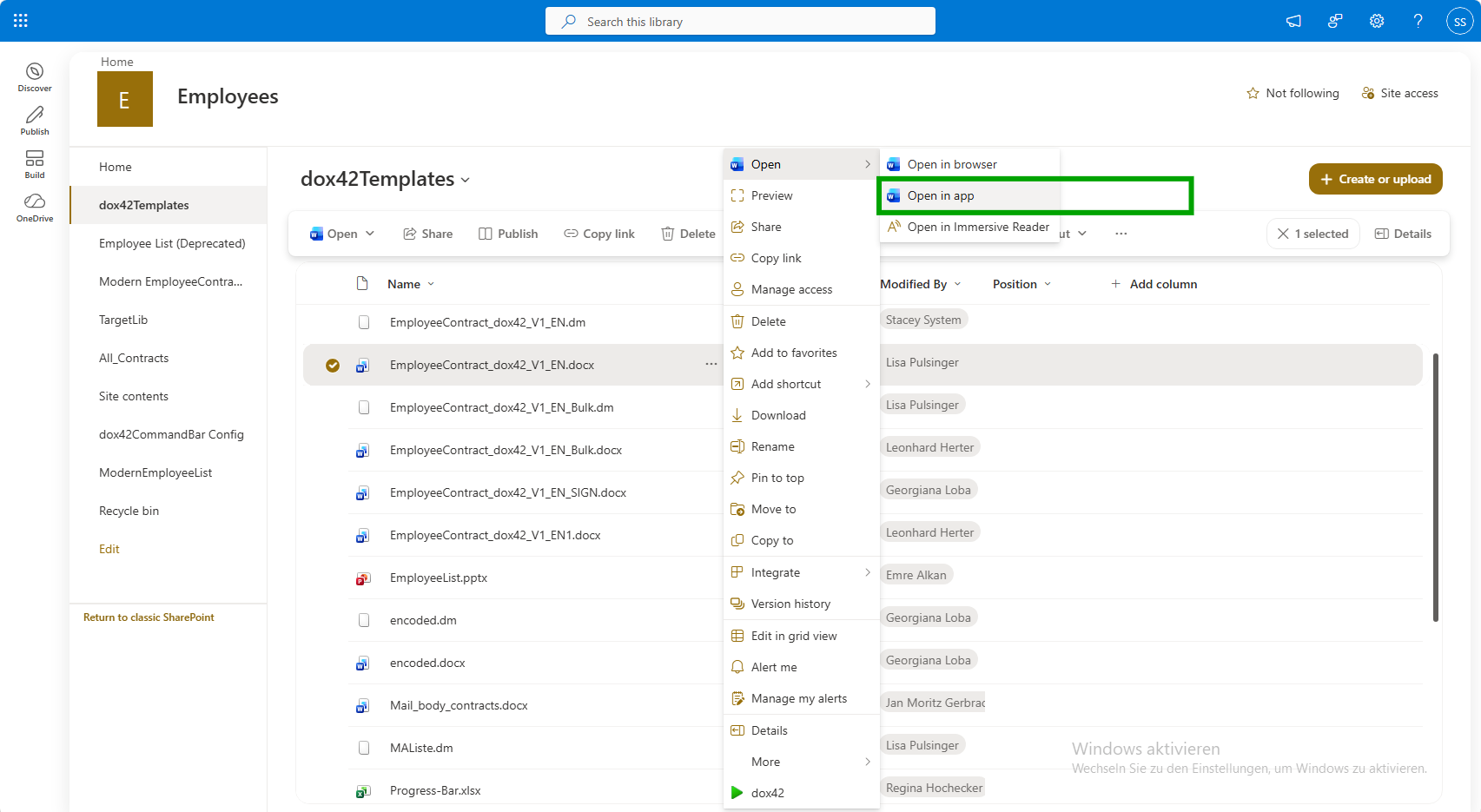
Opening a Word template directly from a SharePoint site
Here you can find more information about dox42 Entra ID app registrations: