If you want to work with XML/JSON data but the data source is not available as a file or URL, there is another option besides loading XML/JSON data from a file or URL. dox42 can also receive XML/JSON via an input parameter, e.g., request body, and parse its content.
In dox42, input parameters influence how the data is to be structured when returned.
Principles of input parameters
An input parameter mostly refers to a specific data source and is set up within the data map in the Data Map Designer.
A data map can contain several input parameters, relating to either a single data source or several.
The value of an input parameter can be provided by another data field, free text, or a JSON request body, depending on the data source.
An input parameter’s syntax varies depending on the data source.
Prerequisites
Steps
In Microsoft Word, Excel or PowerPoint, open your document template.
Next, go to the dox42 ribbon and select Data Map.

dox42 ribbon
The Data Map Designer window opens and previously added data sources appear.
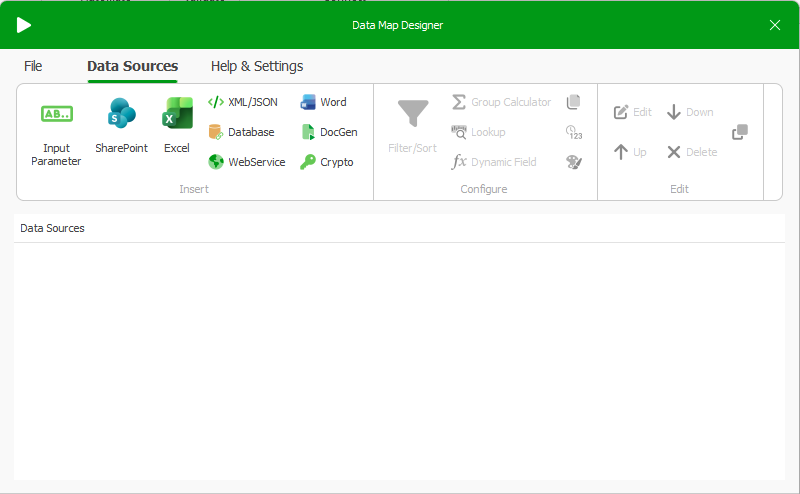
Data map with no data sources
Select Input Parameter.
In the Input Parameter name text field enter a name for the parameter, for example
RequestBody.From the Input type dropdown select Text.
In the text box enter your XML/JSON data which you obtained from another source.
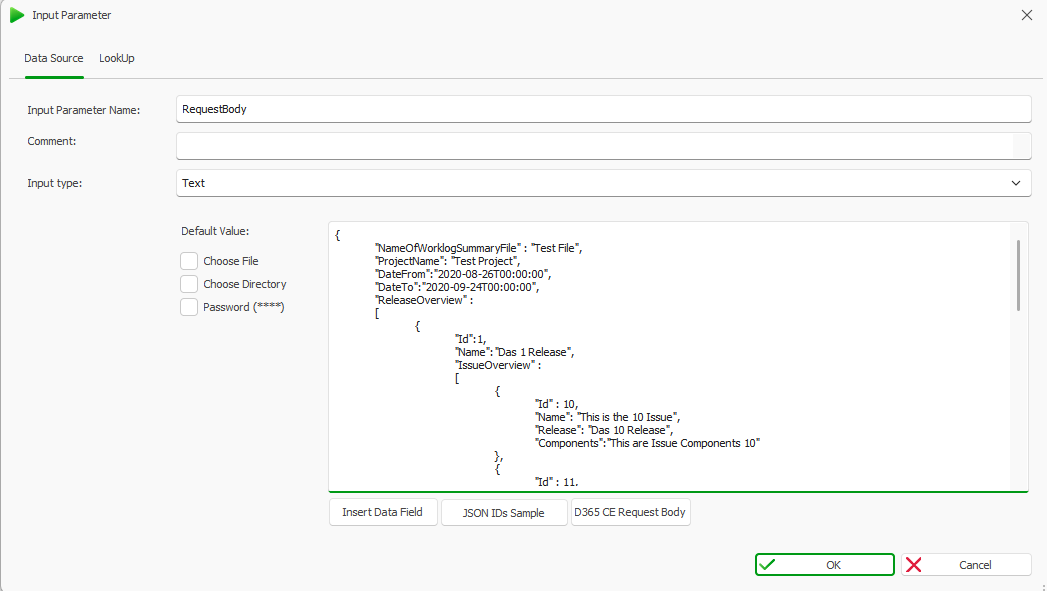
Input parameter with JSON Request Body
Select OK.
A data field called RequestBody has been created.Select the XML/JSON data source from the Data Sources tab.
The XML/JSON window opens.In the Data Source tab, enter a name for the new data source in the Name field.
Note
Names should follow your internal guidelines consistently to help template users understand and navigate your templates easily.
Select GET from the URL/XML/JSON dropdown.
Select the Insert Data Field button.
The dox42 Data Fields explorer opens.Select the previously added RequestBody data field from the list and select OK.
The XML/JSON data source now uses the input parameter’s request body.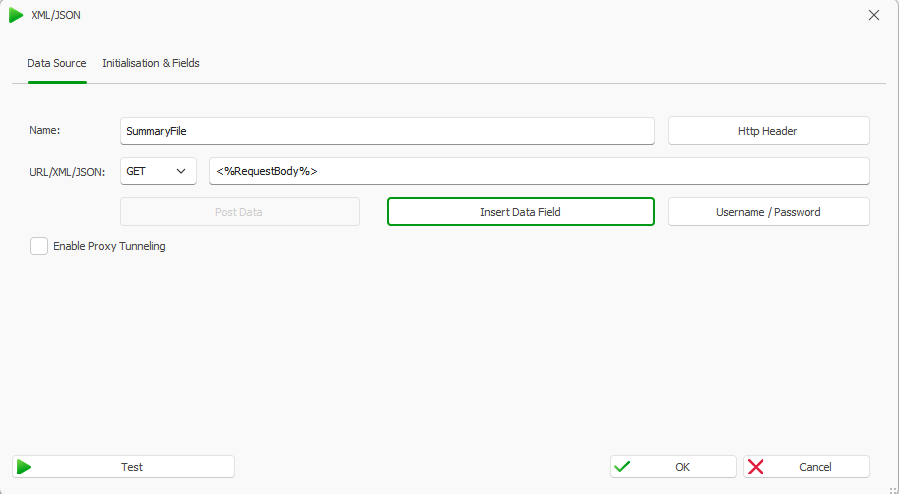
XML/JSON data loaded as data field from an input parameter
Result
You have loaded XML/JSON data from an input parameter.
Next step
Structure your XML/JSON data according to step 7 and the following in the article Importing and structuring flat XML/JSON data.