This content applies to: 
When generating documents, you may want to include information for multiple records from a data source, such as a list of training participants. Instead of inserting each participant's details manually, you can use the Repeat for Data Source function to automatically repeat a selected section of your template for every record returned by the data source.
In this example, you will use this function to create a dynamic Word table that displays one row for each training participant. However, the function is not limited to tables. You can also use it to repeat other content in your Word template.
Steps
In Microsoft Word, open your document template.
Create the desired table and insert the desired data fields into the second row.

Example: Simple table with data fields in the second row
Select the row with the data fields.
Go to dox42 > Automate Range.
From the Repeat for Data Source dropdown select the desired data source.
Note
The selected data source determines how often the section is repeated. During document generation, dox42 creates one instance of the selected section for each record returned by that data source and populates the data fields with the corresponding values.
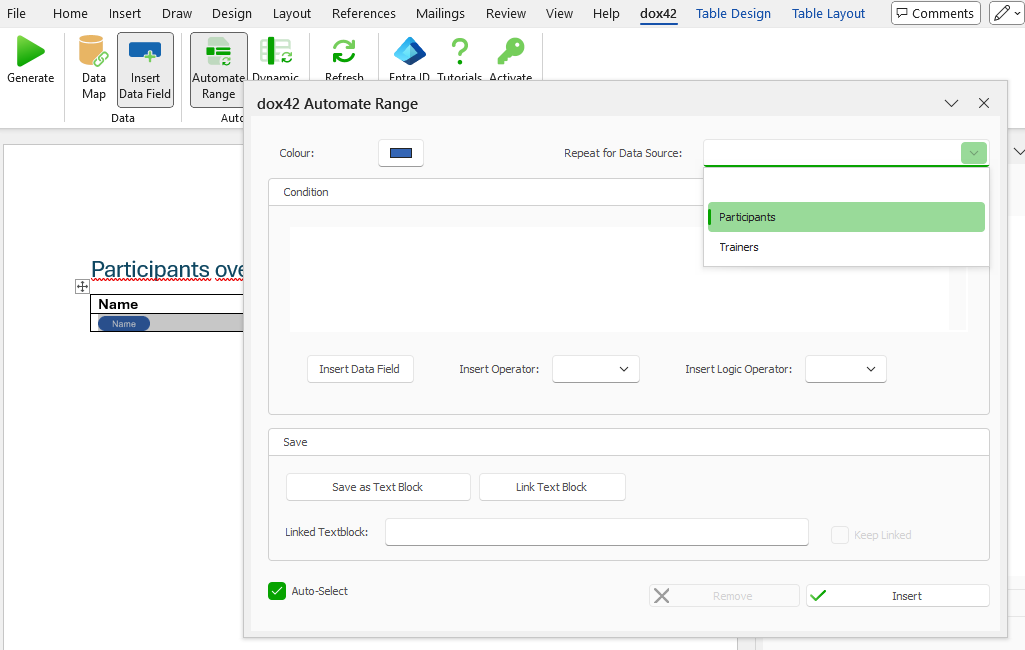
dox42 Automate Range window with Repeat for Data Source dropdown
Optional: Select a colour to better identify repeated sections.
Optional: Add a condition.
Select Insert.
You can recognise the dynamic row by the arrows icon.
Table with repeated data fields
Tip
If your table extends over multiple pages, you can use Microsoft Word's built-in functionality to repeat the table header on each page. To do this, select the header row and go to Table Layout > Repeat Header Rows. This ensures that the column headings remain visible on subsequent pages.
Save the document template.
Result
You have created a dynamic table. When you generate the document, dox42 automatically adds a table row for each training participant returned by the selected data source. Each row contains the corresponding participant's information.
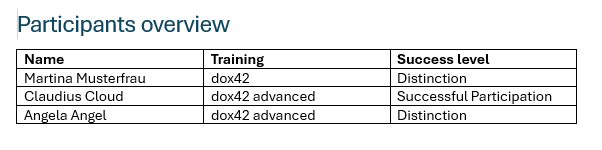
Generated document with a table of all participants, their training, and success levels in dox42 courses.