To use the dox42 SharePoint Online App on your sites, you need to upload the app to your SharePoint Online App Catalog. You will also need to enable to app to get all necessary permissions.
Prerequisites
Check if an App Catalog site collection exists. Otherwise, create one.
You must have admin permissions for the App Catalog site collection.
Steps
Open the SharePoint admin center.
Go to Show all > SharePoint > more features > Apps.
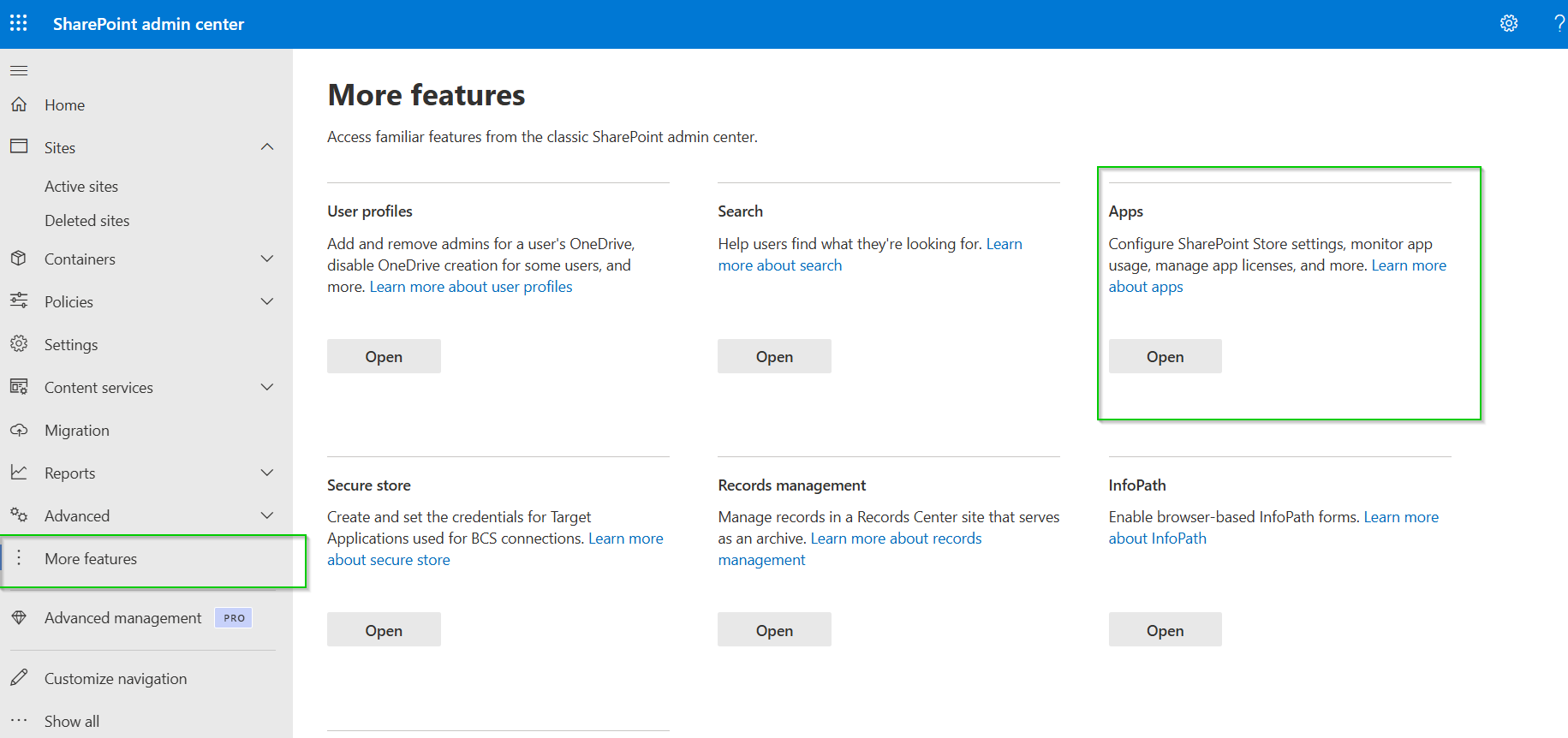
Apps tile in SharePoint Online
Then, select App Catalog > Apps for SharePoint.
The Manage apps window opens. Upload the dox42 SharePoint Online App (dox42-cmd.sppkg file) by clicking on Upload. Click on Replace, if you want to update an older version of the app.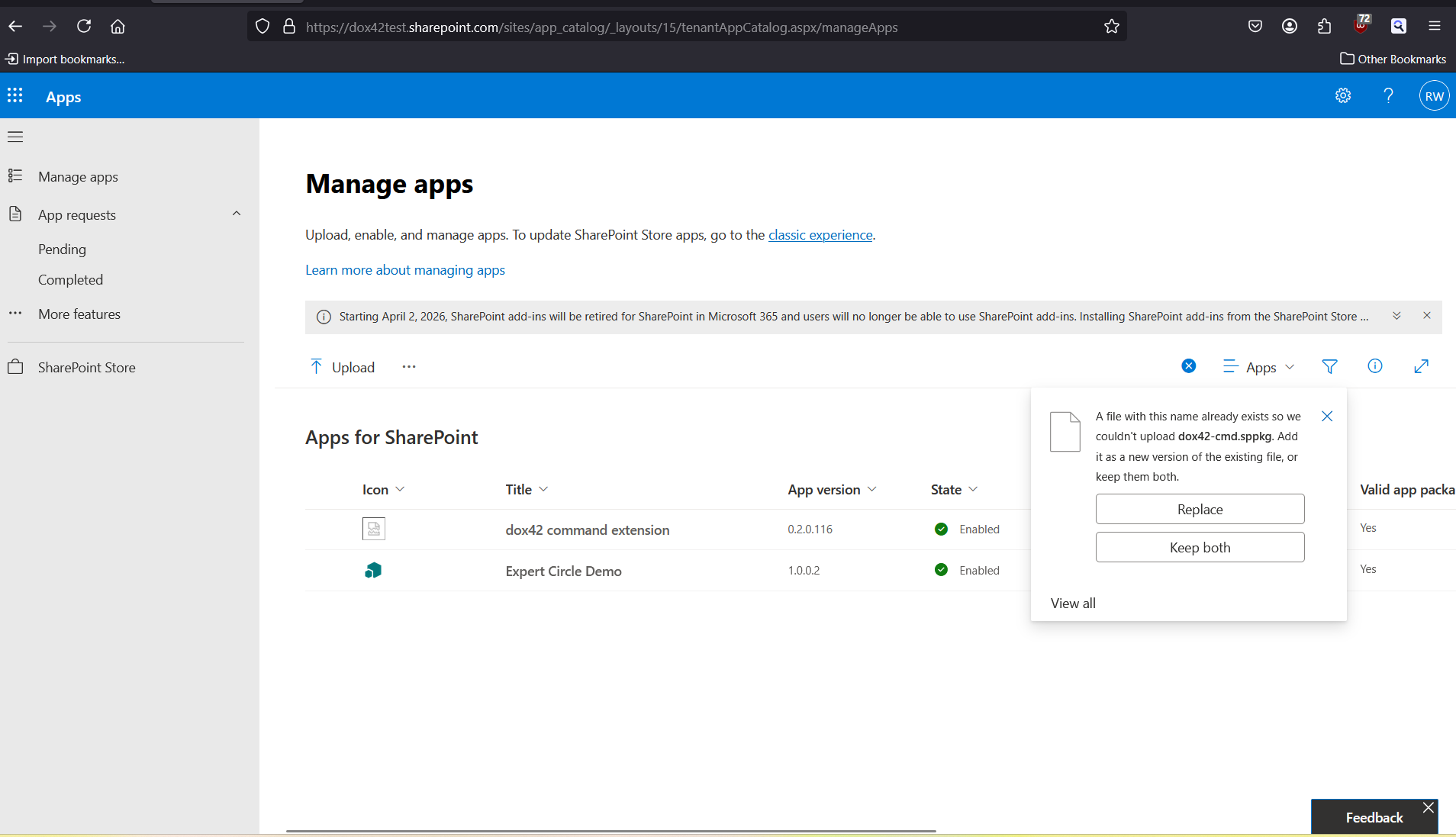
Managing apps
Enable the app by selecting the Enable app button.
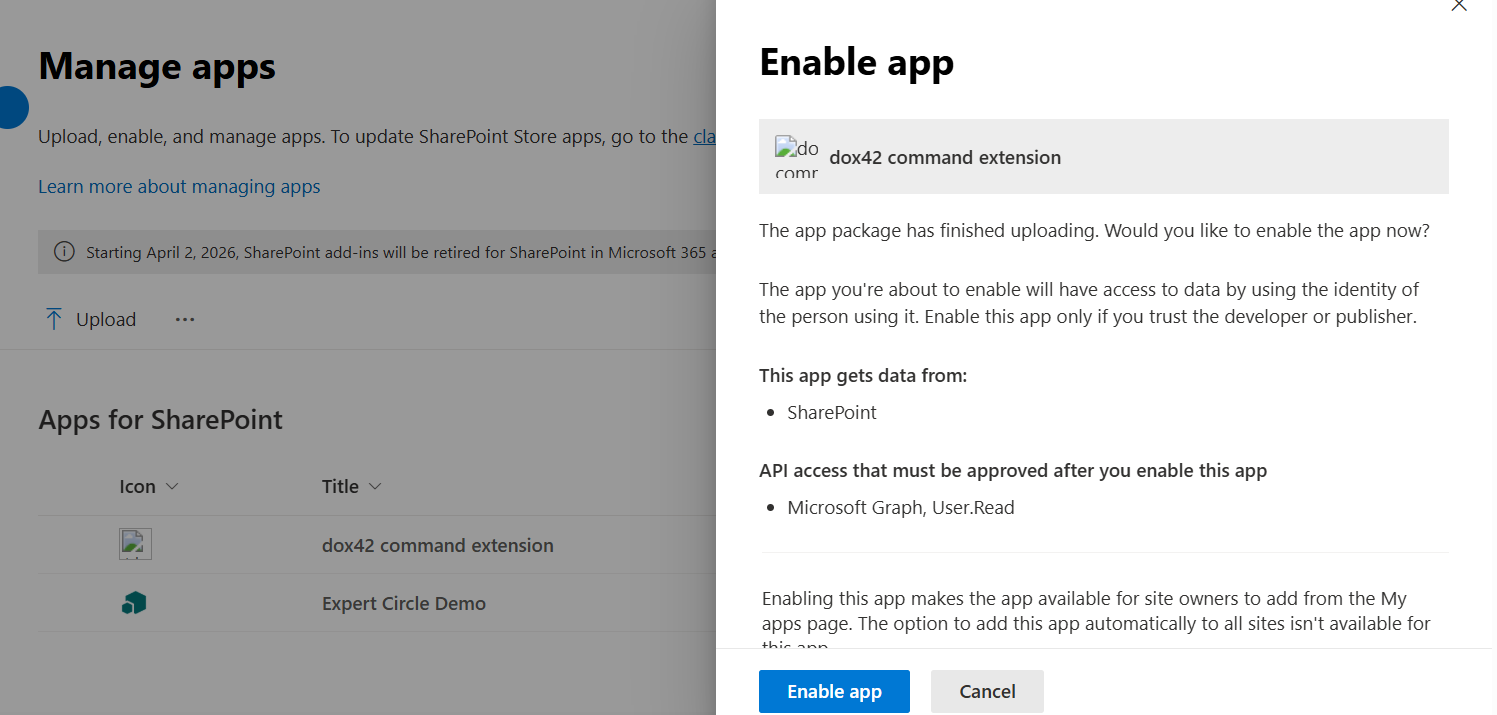
Enabling the app
Once you have enabled the app, you need to grant it API access. Select the Go to API access page button. This will apply the API access and you will be redirected to an overview page where you can see all rights granted.
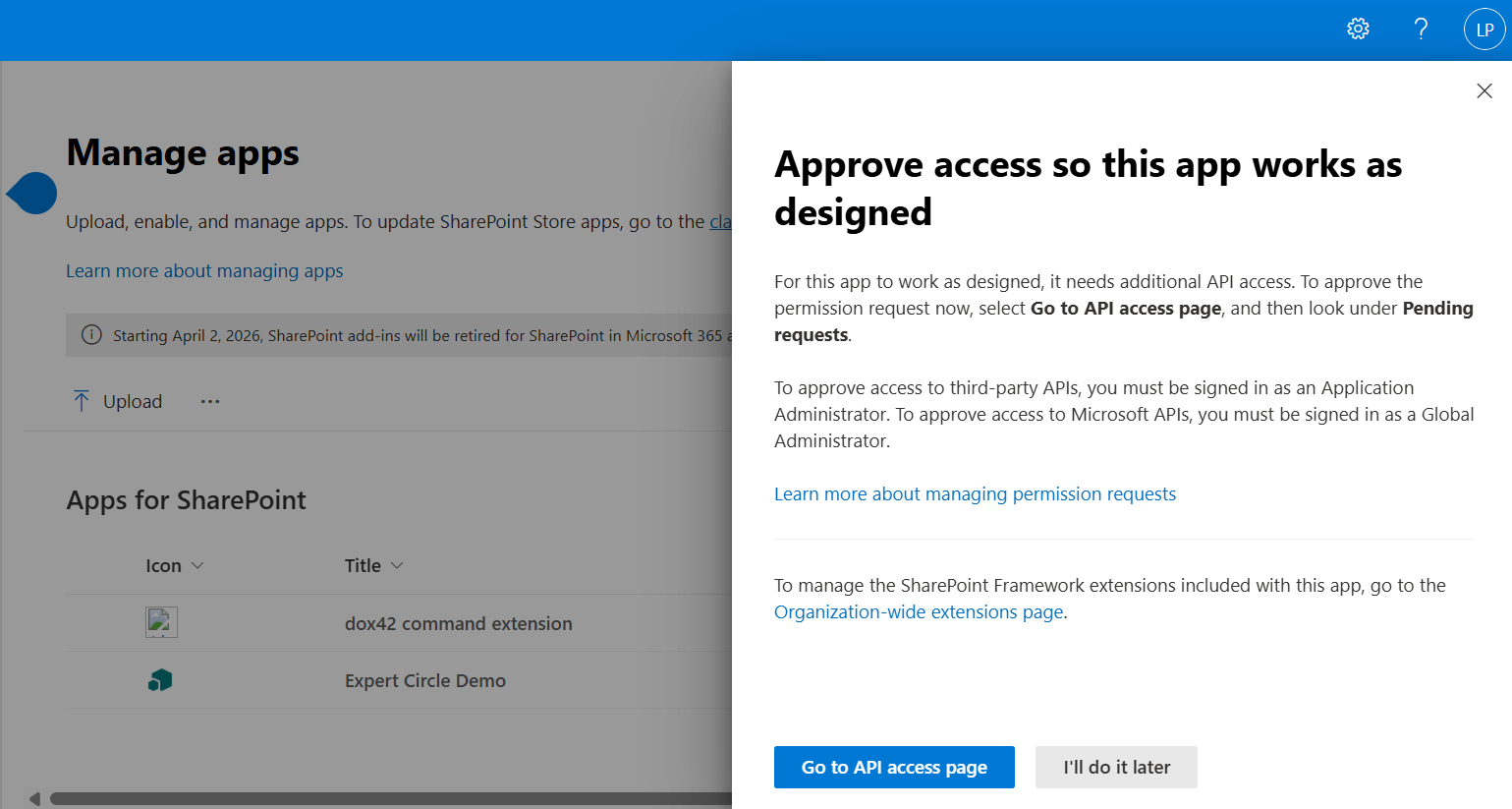
Approving API access to the app
Result
You have successfully uploaded and enabled the dox42 SharePoint Online app.