You need to expose a new scope within your dox42 Entra ID app registration in order to select the necessary API permissions for using the dox42 SharePoint Online App.
Steps
Open the Microsoft Entra admin center: https://entra.microsoft.com
Go to App registrations and select your dox42 App Registration. See Microsoft Entra ID Integration for more information.
Select the Expose an API tab.
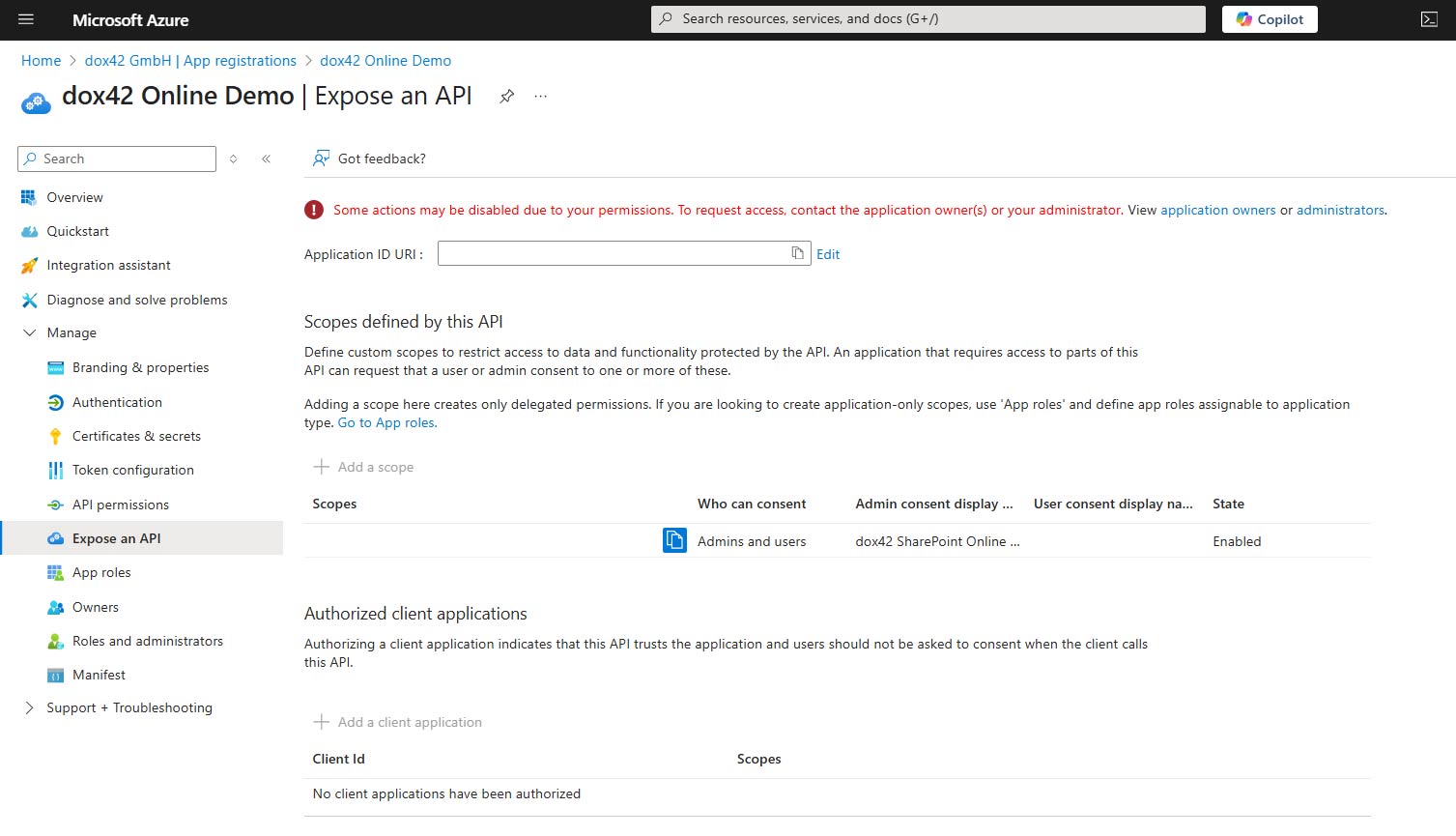
Expose an API tab
Select Add a scope.
If you have not set an Application ID URI, you will see a prompt to enter one. Enter your application ID URI or use the one provided. Example:
https://<yourcompany.com>/fb04c99e-.....).Important
The Application ID URI must be globally unique.
When the Edit a scope dialog appears, enter your scope's information:
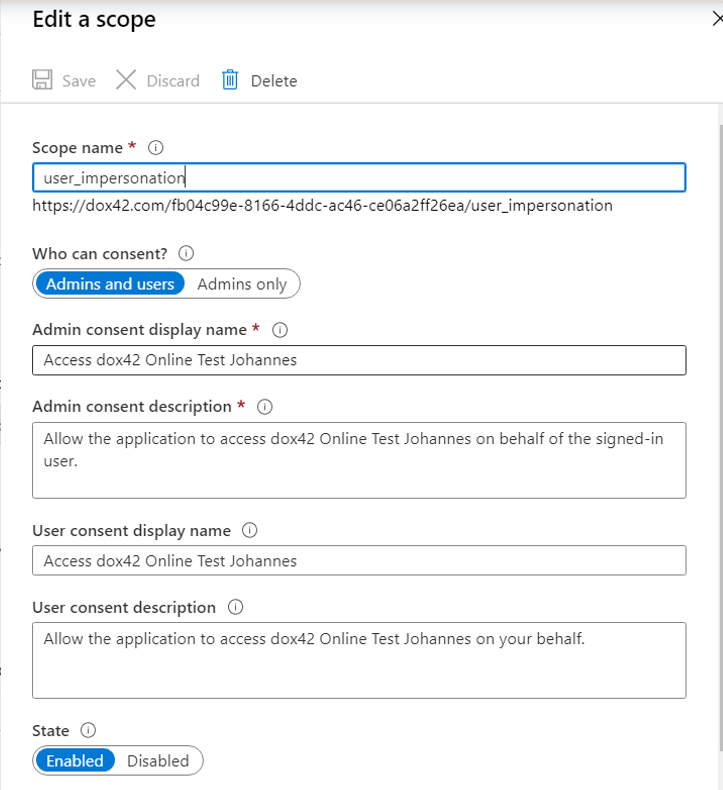
Edit a scope dialog
Now click on Add a Client application
Enter the Client ID of the SharePoint Online Web Client Extensibility App, which is always 08e18876-6177-487e-b8b5-cf950c1e598c
Note
The SharePoint Online Web Client Extensibility App is a Microsoft Enterprise Application that is automatically added to your Entra ID Apps, once you enable the dox42 SharePoint Online App.
Under Authorized scopes, select the scope which you have set up in the step before.
Click on Add application
.png)
Result
You exposed a new scope within your dox42 Entra ID App Registration in order to grant API permissions to “SharePoint Online Extensibility Web Application Principal”.