Connect the dox42 D365 CE | Dataverse data source in your dox42 Add-In to Microsoft Dynamics CRM (on-prem) or D365 CE.
Note
You can connect to Microsoft Dynamics 365 CE as well as to Microsoft Dynamics CRM on-prem (2011, 2013, 2015, 2016).
Prerequisites
Steps
In Microsoft Word, Excel or PowerPoint, go to the dox42 ribbon and select Data Map.
.png)
dox42 ribbon
The Data Map Designer window opens..png)
Data Map Designer window
Select D365 CE | Dataverse.
The D365 CE | Dataverse window opens.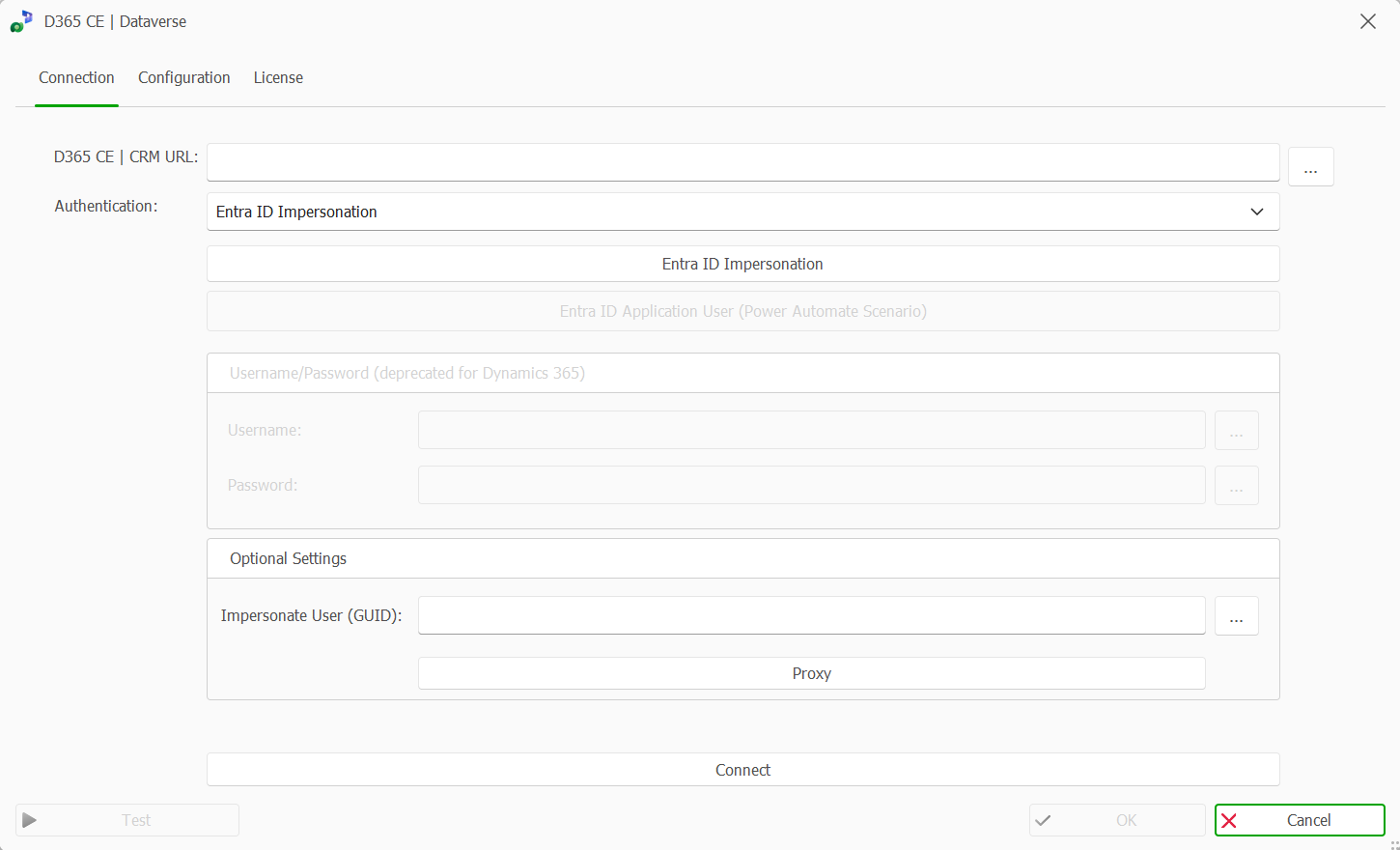
Connections tab
To configure the connection to Microsoft D365 CE:
On the Connection tab, type a URL in the CRM URL box, if you connect to D365 CE or Microsoft CRM on-prem
Example:https://<Yourcompany>.crm4.dynamics.com.You can define data fields of any other data source for every value or simply enter the values as well.
Note
By defining data fields, you can keep the configuration for example in an Excel or XML file.
From the Authentication dropdown select your preferred authentication method:
Username/Password (Dynamics CRM on-prem only)
Entra ID Impersonation (see Connecting to Microsoft D365 CE CRM with Entra ID impersonation)
Entra ID Application User with clientsecret or certificate (see Connecting to your D365 CE | CRM with Entra ID application user with client secret/certificate)
When using Username/Password (on-prem only):
Optional: Enter your username and password.
Note
These can be encrypted with the dox42 Crypto Data Source.
Optional: To impersonate users, use the Impersonate User (GUID) box together with a Service-User Username/Password.
For impersonation with the currently logged in user, use the input ParameterUserID.Optional: Select the Proxy button, in order to specify Proxy settings.
Note
Proxy settings are used from the dox42 Add-In only, and ignored on the dox42 Server.
Result
You have connected the dox42 D365 CE | Dataverse data source to Microsoft Dynamics CRM or to Microsoft D365 CE. Next, you can include data from any entity or Dataverse table.