In this step, you will establish a connection to your SAP system using the dox42 RFC for SAP® data source. This connection allows the application to access and retrieve data from SAP in real time.
To set up the connection, you’ll need to provide the required authentication details. Once connected, you’ll be able to fetch available entities and work with SAP data in your document.
Establishing a successful connection is the first and essential step before applying filters, selecting properties, or generating documents.
Prerequisites
The system requirements are met.
Steps
In Microsoft Word, Excel or PowerPoint, go to the dox42 ribbon and select Data Map.

dox42 ribbon
The Data Map Designer window opens.
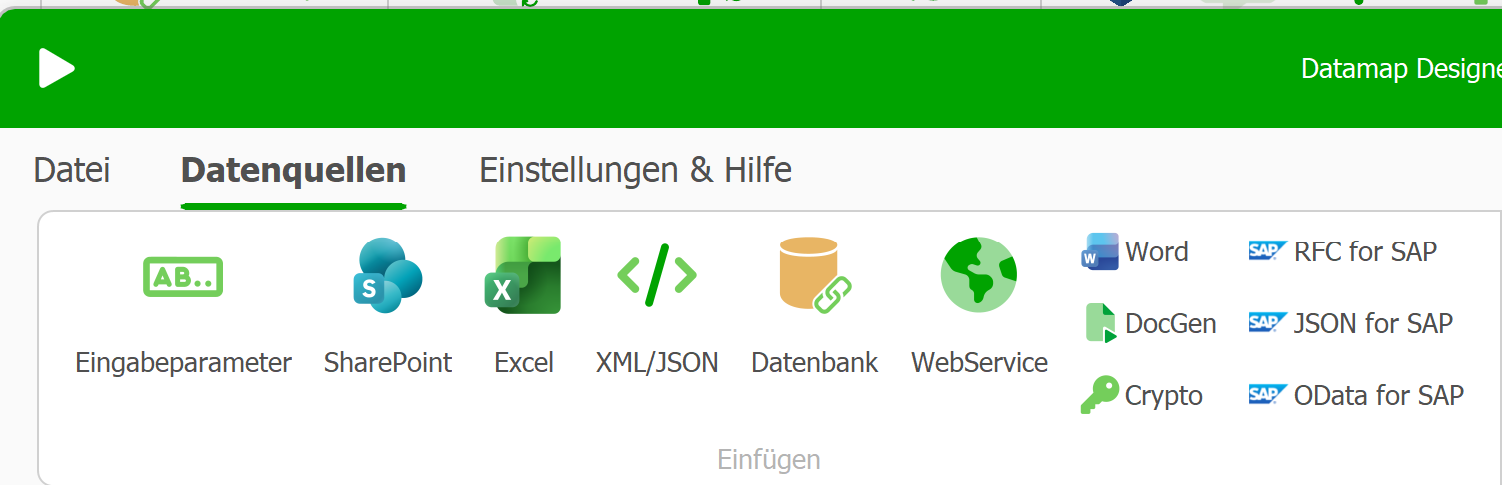
Data Map Designer
Select the RFC for SAP data source.
The RFC for SAP window opens.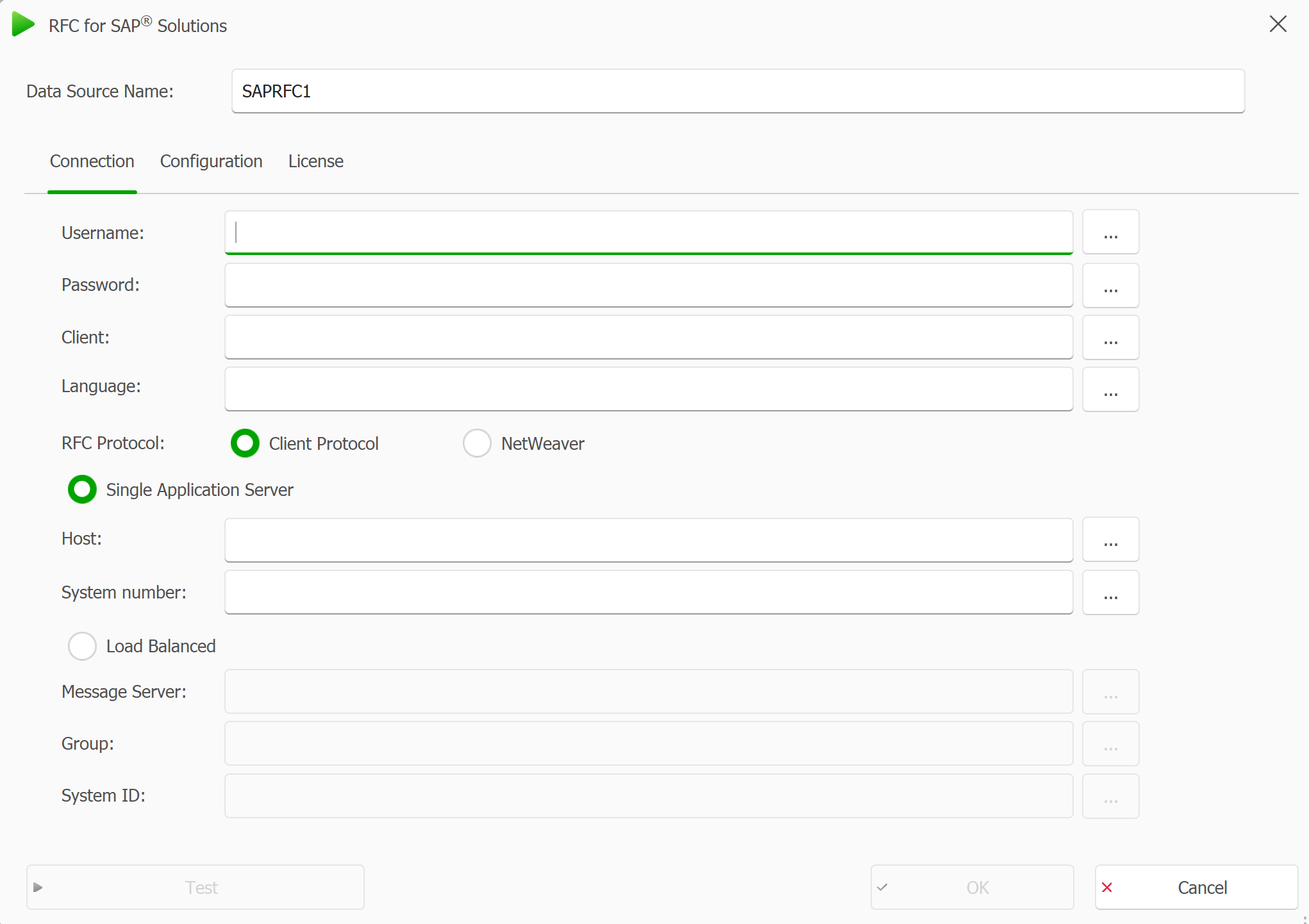
Connection tab in the RFC for SAP window
Enter the required connection details to configure the connection:
You can define data fields of any other data source for every value or simply enter the values as well.
By defining data fields, you can keep the configuration for example in an Excel or XML file.Enter your username and password.
These can be encrypted with the dox42 Crypto Data Source. For more information, watch our My first dox42 document tutorial.Fill in the Client and Language text fields.
Select which RFC Protocol should be used when connecting this data source to the SAP Server.
Depending on your SAP system, select the corresponding Single Application Server radio button or Load Balanced radio button and enter the required data.
Result
You have connected the dox42 RFC for SAP® data source to SAP.