To process nested XML or JSON structures, you can create multiple XML/JSON data sources that build on each other. Each additional data source references a data field generated by the preceding data source, allowing you to access the XML or JSON structure level by level. This way you define an XML or a JSON index once and reference it reliably afterwards.
JSON example used for this article
In our example, the JSON file contains nested elements, as the ReleaseOverview element has child elements and the IssueOverview child element, in turn, has its own child elements.
{
	"NameOfWorklogSummaryFile" : "Test File",
	"ProjectName": "Test Project",
	"DateFrom":"2020-08-26T00:00:00",
	"DateTo":"2020-09-24T00:00:00",
	"ReleaseOverview" :
	[
		{
			"Id":1,
			"Name":	"This is Release 1",
			"IssueOverview" :
			[
				{
					"Id" : 10,
					"Name": "This is Issue 10",
					"Release": "This is Release 10",
					"Components":"These are Issue Components 10"
				},
				{
					"Id" : 11,
					"Name": "This is Issue 11",
					"Release": "This is Release 11",
					"Components":"These are Issue Components 11"
				}
			]
		},
		{
			"Id":2,
			"Name":	"This is Release 2",
			"IssueOverview" :
			[
				{
					"Id" : 20,
					"Name": "This is Issue 20",
					"Release": "This is Release 20",
					"Components":"These are Issue Components 20"
				},
				{
					"Id" : 21,
					"Name": "This is Issue",
					"Release": "This is Release 21",
					"Components":"These are Issue Components  21"
				}
			]
		}
	],
	"WorklogItems":
	[
		{
			"IssueId":10.2,
			"Date":"2020-09-01T00:00:00",
			"Comment":"This is a comment",
			"Person":"Max Musterfrau",
			"TimeSpentAsDecimalString":"2.00"
		},
		{
			"IssueId": 11,
			"Date": "2022-09-01T00:00:00",
			"Comment": "This is another comment",
			"Person": "Max Mustermann",
			"TimeSpentAsDecimalString": "3.00"
		}
	]
}
Load your XML/JSON data and organise the top-level structure as shown in Importing and structuring XML/JSON data. You have added an XML/JSON data source to your data map and structured the data so that it can be read.
Important
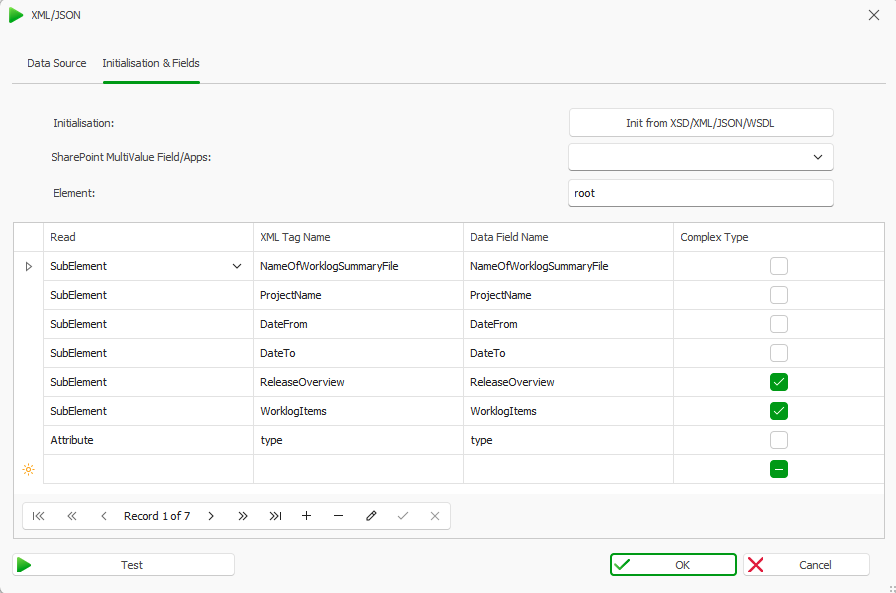
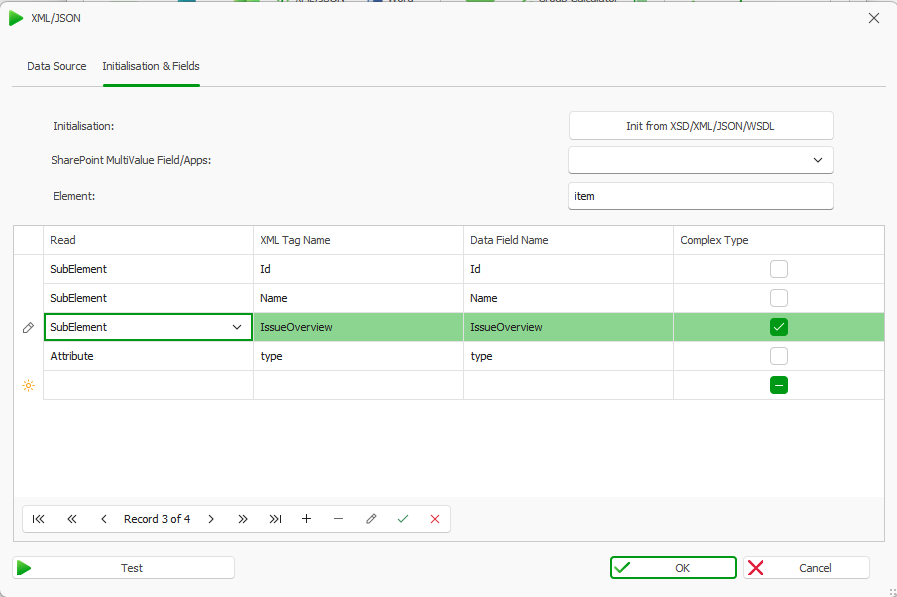
Make sure you have selected the Complex Type checkbox in the Initialisation & Fields tab for those elements that have important sub-elements.
Initialising the structure like shown in the screenshot creates data fields for all parent elements. Parent elements for which you selected the Complex Type checkbox can then be addressed in the subsequent steps.
Next, in the Data Map Designer window, select the XML/JSON data source from the Data Sources tab once again. The XML/JSON window opens.
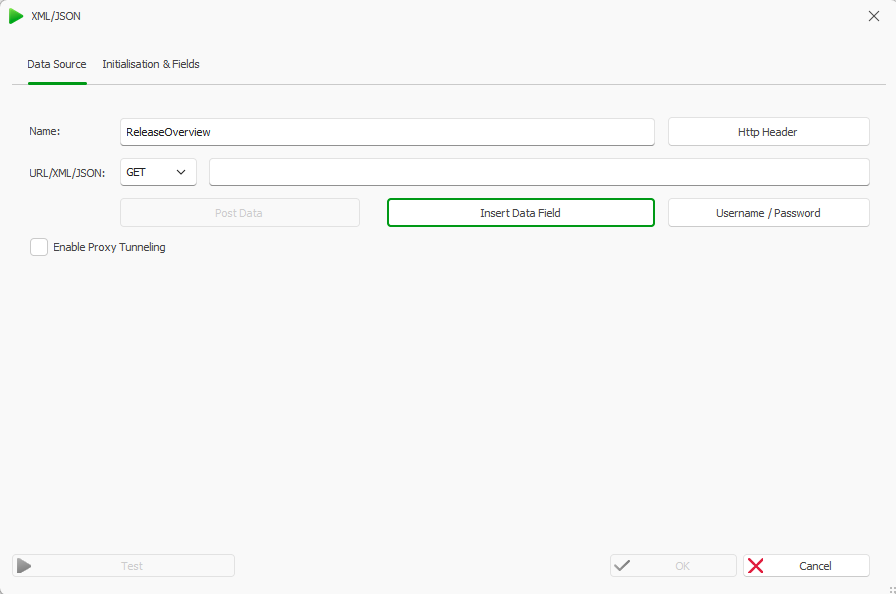
In the Data Source tab, enter a name for the new data source in the Name field. Ideally, you should name the data source after the first element whose child elements you wish to access. In our case, this is ReleaseOverview.
XML/JSON data source referencing a data field
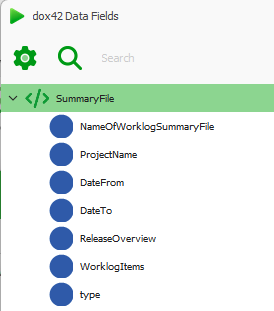
Select the Insert Data Field button to access the previously added data fields. The dox42 Data Fields explorer opens.
Available data fields from first XML/JSON data source
Select the first parent element whose child elements you wish to access. In our case, this is ReleaseOverview.
In the Initialisation & Fields tab, select the Init from XSD/XML/JSON/WSDL button to access the XML/JSON file you selected in step 1.
The Init XML/JSON Data Source window opens.
Select the three dots to open the data source.
Select the Load button to load its structure. The structure of the data source is displayed.
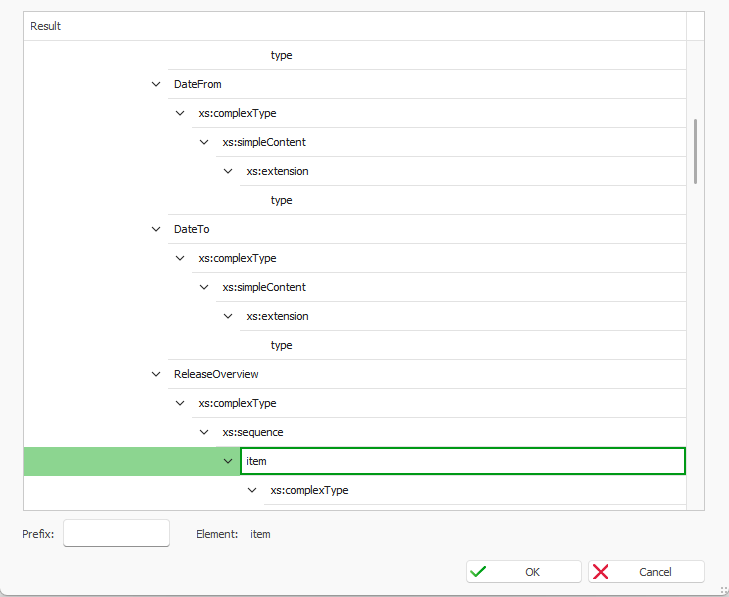
Select the element level from which the data is to be read. In our case, this is ReleaseOverview > Item, since this element has further sub-elements.
Parent element from which the XML/JSON data source is to be read
Select the OK button to close this window and go back to the XML/JSON window. All elements located below the selected (item) element are displayed in the table as structured data fields.
Via the Read column in the table, select how you want to read the individual XML elements
SubElement To read the entire element (default value)
Attribute To read the element’s attributes
Content To display all content as text, without any XML structure
XPath To display specific values using a filter
Via the Data Field Name column, define your data fields’ names that will be displayed in your template.
Leave the Complex Type checkbox selected if you want to retrieve sub-elements of another element. In our case, this is IssueOverview.
Initialised structure for the ReleaseOverview element
Initialising the structure like shown in the screenshot above creates data fields for all parent elements. Parent elements for which you selected the Complex Type checkbox can then be addressed in the subsequent steps. In our case, this is IssueOverview.
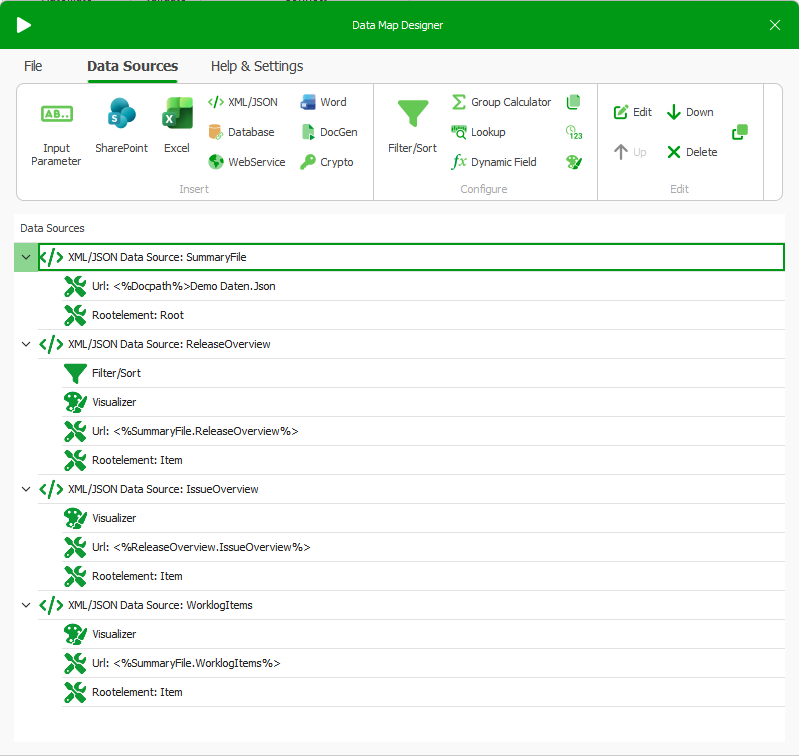
Repeat steps 2 to 13 until you have reached the desired level of your XML/JSON data. In our case, we are creating another XML/JSON data source called “IssueOverview” to retrieve the sub-elements of IssueOverview and another XML/JSON data source called ‘WorklogItems’ to retrieve the sub-elements of WorklogItems.
Important
Once initialisation for one data source is complete, check whether the structure has been recognised correctly, whether all the required fields are present and whether the data is being read as expected. To do so, in the XML/JSON window, select the Test button.
Save your data map.
Result
You have added different XML/JSON data sources to your data map in order to read the nested structure of an XML/JSON file.
Tip
Expand the data sources to see at a glance which content is being read from them.
Added data sources to read a nested XML/JSON structure
You have also created data fields for the elements of the XML/JSON data source, which you can now use for your template design.