You can display data as a barcode. For example, you could provide a QR code for easy access to a website link or an e-mail address.
Steps
Open your PowerPoint template.
Go to the dox42 ribbon and select Insert Data Field.

dox42 ribbon in PowerPoint
The dox42 Data Fields pane opens which contains all available data fields.
Insert a new data field or select the already inserted data field in the document template.
The details of this placeholder are displayed in the dox42 Data Fields pane.From the Type dropdown select the BarCode entry.
Enter a dimension in the Dimension text field.
Use a semicolon to separate the dimension numbers.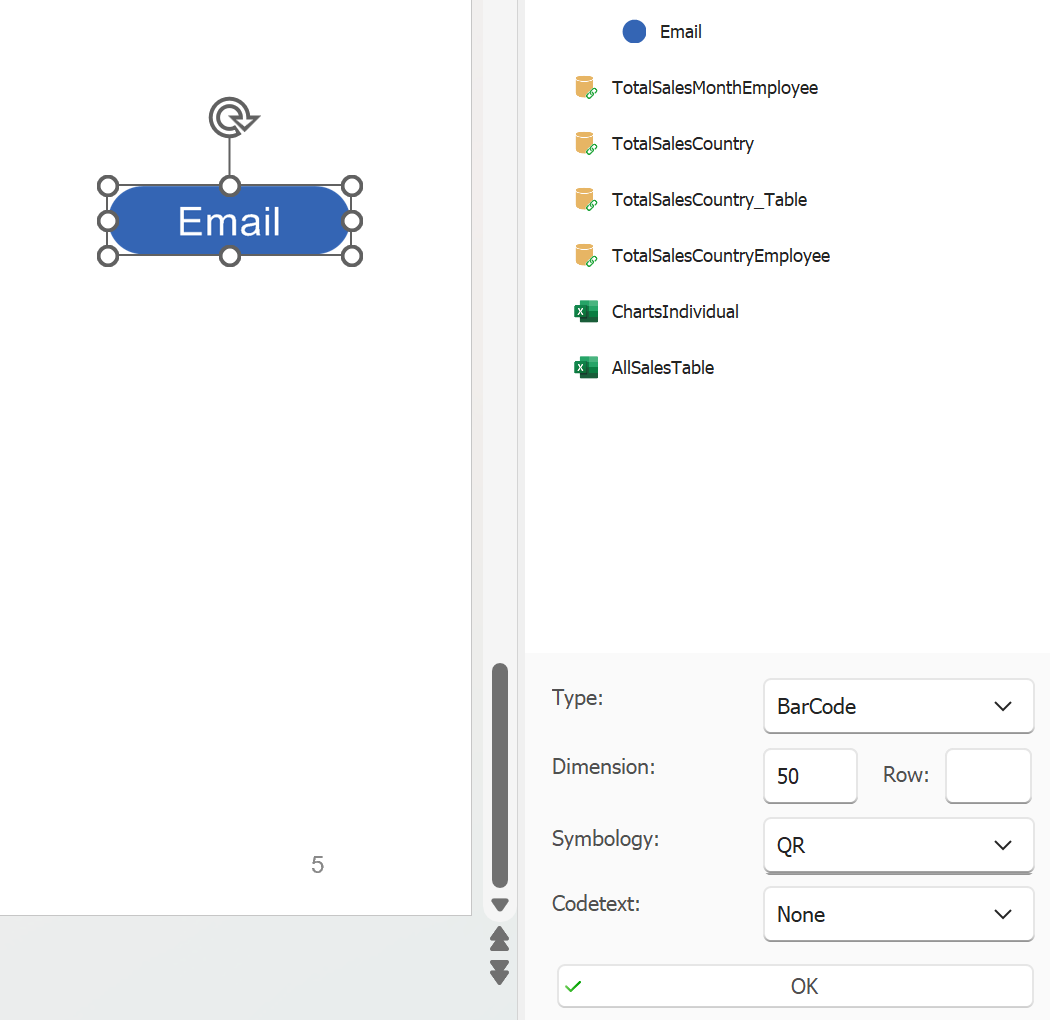
Example of BarCode configuration
Optional: Adjust the other options to your needs:
Codetext: Select if and where the data field value should be displayed along with the barcode.
Symbology: Select the type of barcode, e.g. QR.
Select OK.
Save the document template.
Result
You have inserted data as a barcode. When you generate the document the data field will be displayed as a barcode.
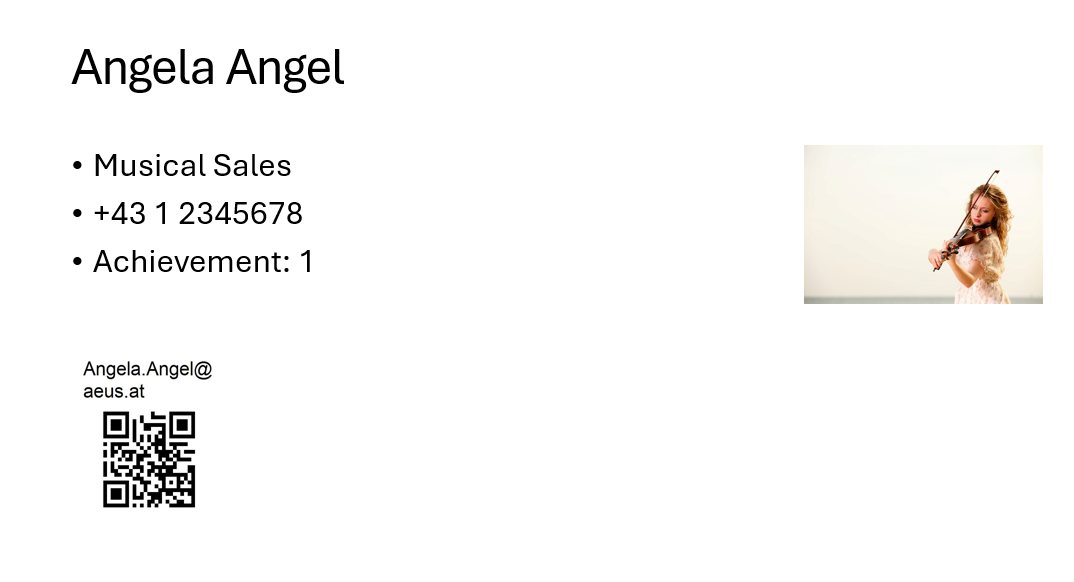
Example of an e-mail address generated as barcode