You can configure a data field to display images. For example, if you want to display the individual portrait on an employee’s slide. The data source contains the partial file path to the image file and the dox42 PowerPoint Add-In completes and follows this path to include the image into the generated document.
Steps
Add the needed images in or below the same folder as the document template.
Set up your data source to contain the partial file path to the image file. In the following example with the employees’ images are stored in a subfolder named
Images.
Example of an image data field in an Excel data source
Open your PowerPoint template.
Go to the dox42 ribbon and select Insert Data Field.

dox42 ribbon in PowerPoint
Insert a new data field or select the already inserted data field in the document template that contains the path to the image.
The details of this placeholder are displayed in the dox42 Data Fields pane.From the Type dropdown select the Image entry.
Enter a dimension in the Dimension text field using a semicolon to separate the dimension numbers.
Optional: Adjust the image quality to your needs.
In the Directory/URL text field enter the
<%DOCPATH%>variable to complete the file path to the images.
The<%DOCPATH%>variable contains the document template’s path. In our example the dox42 PowerPoint Add-In will now complete the path defined in our Excel data source with the document template’s folder path. This could look like this:C:/Document Templates/EmployeePresentation/Images/AngelaAngel.jpg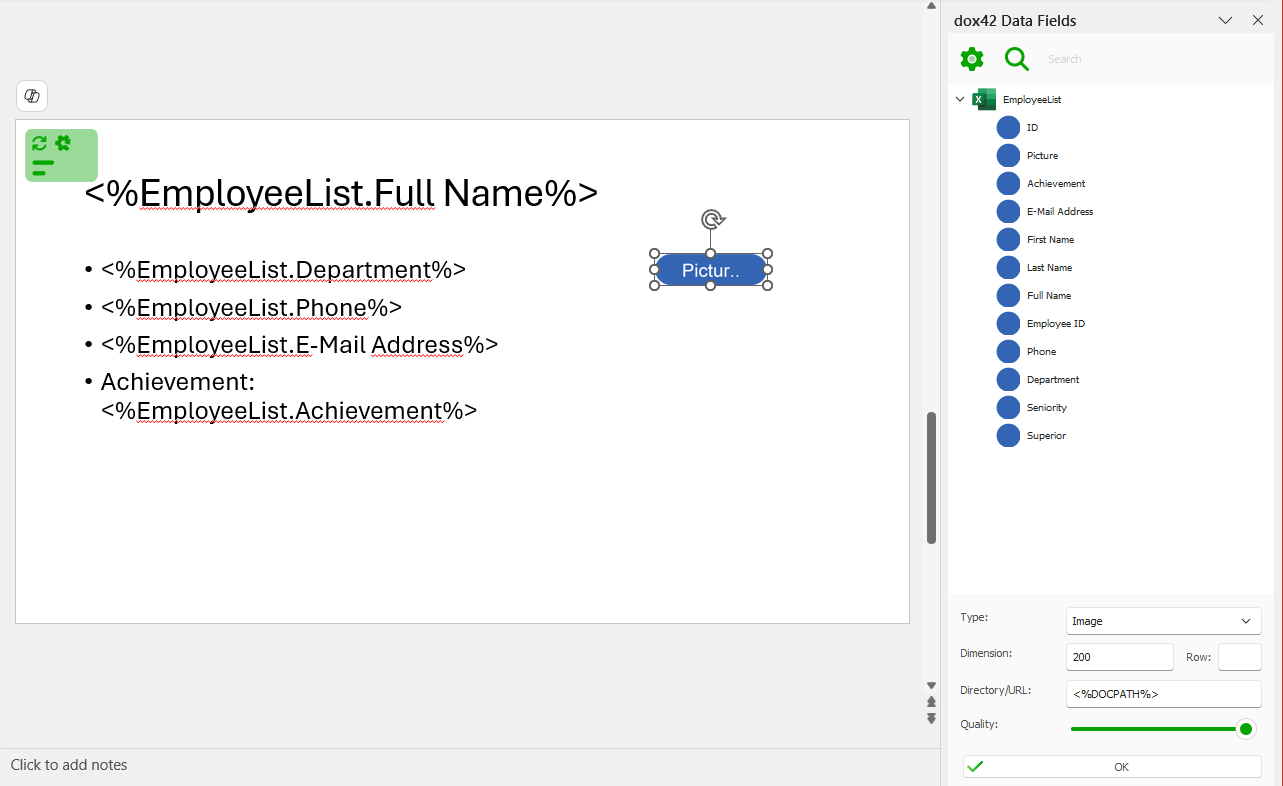
Configured image data field
Select OK.
Save the document template.
Result
You have inserted an image via data field. When you generate the document the data field will include the image.

Generated slide with an image