You can insert data fields into your PowerPoint template.
Prerequisite
Steps
Open your PowerPoint template.
Go to the dox42 ribbon and select Insert Data Field.

dox42 ribbon in PowerPoint
The dox42 Data Fields pane opens which contains all available data fields.
Select one data field and drag it to the desired place in the template.
Tip
As well as using the 'drag & drop' functionality, you can insert data fields into your documents by double-clicking them.
The data field will then be inserted in the desired place.
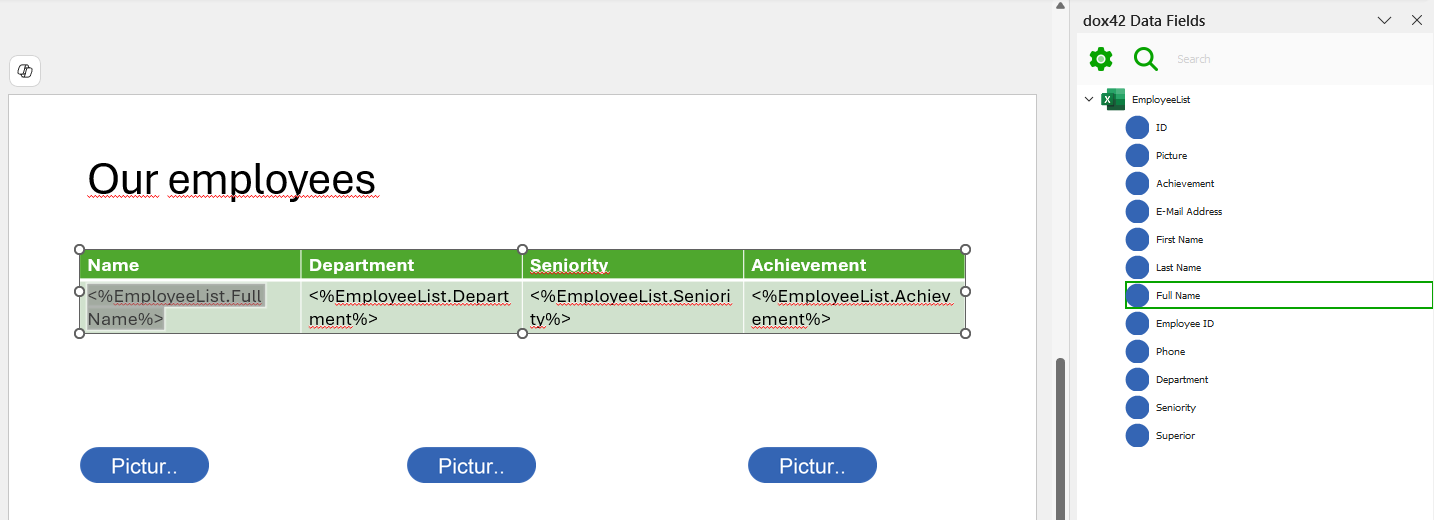
Inserted data field in PowerPoint template
Optional: To remove a data field that contains no data:
Select the checkbox Remove if data field is empty in the dox42 Data Fields pane.
Select OK in the dox42 Data Fields pane.
Save the PowerPoint template.
Result
You have inserted data fields into your PowerPoint template. When you generate the document, it will include that data into the slide.
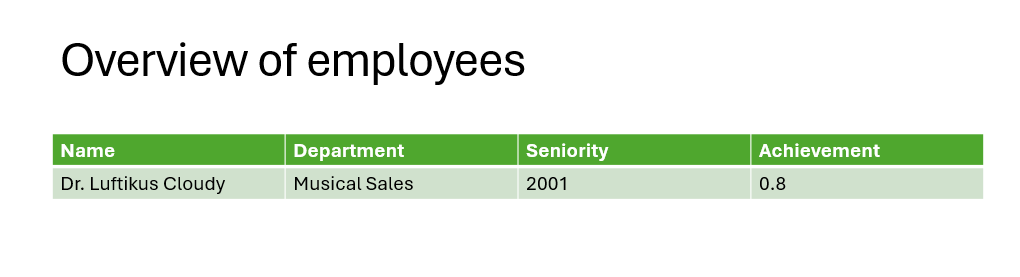
Generated table in PowerPoint
Note
As you can see only data from the first row of the data source is included, i.e. there is only one employee in the table.
To include data from all rows in the data source, see Configuring a dynamic table in your PowerPoint template.