You can configure a table to repeat a table row for every data row from the data source so that all rows are included in the table. Without this configuration, the table would only include the first row from the data source.
For example, you could create an overview of all your employees.
Steps
Open your PowerPoint template.
Create a table and insert the desired data fields.
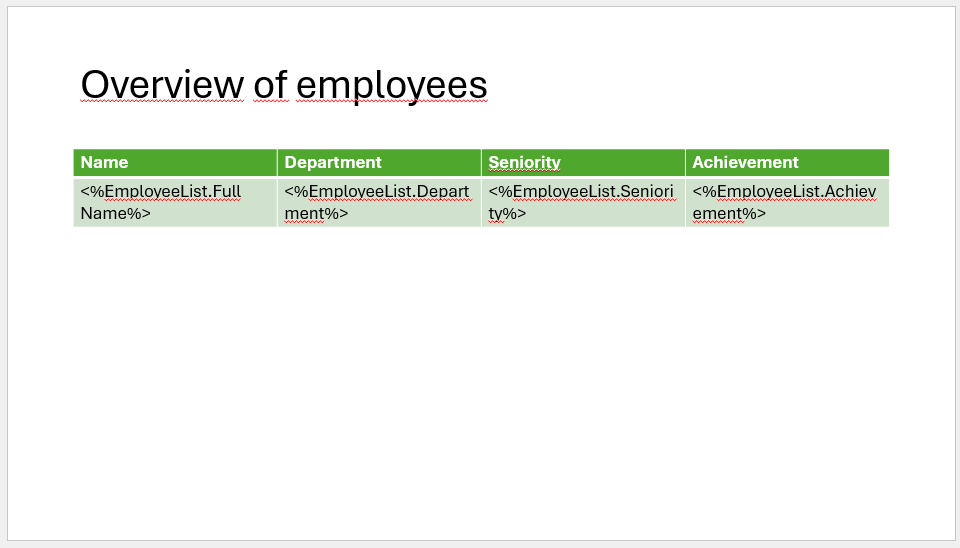
Example: Overview of employees
Select the first data field in the row that you want to repeat. In our example: <%EmployeeList.FullName%>
In the dox42 Data Fields pane, select the Loop Table Rows checkbox.
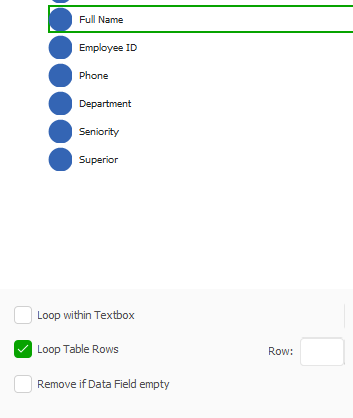
dox42 Data Fields pane
Select OK.
The data field in the template includes a hash sign (#).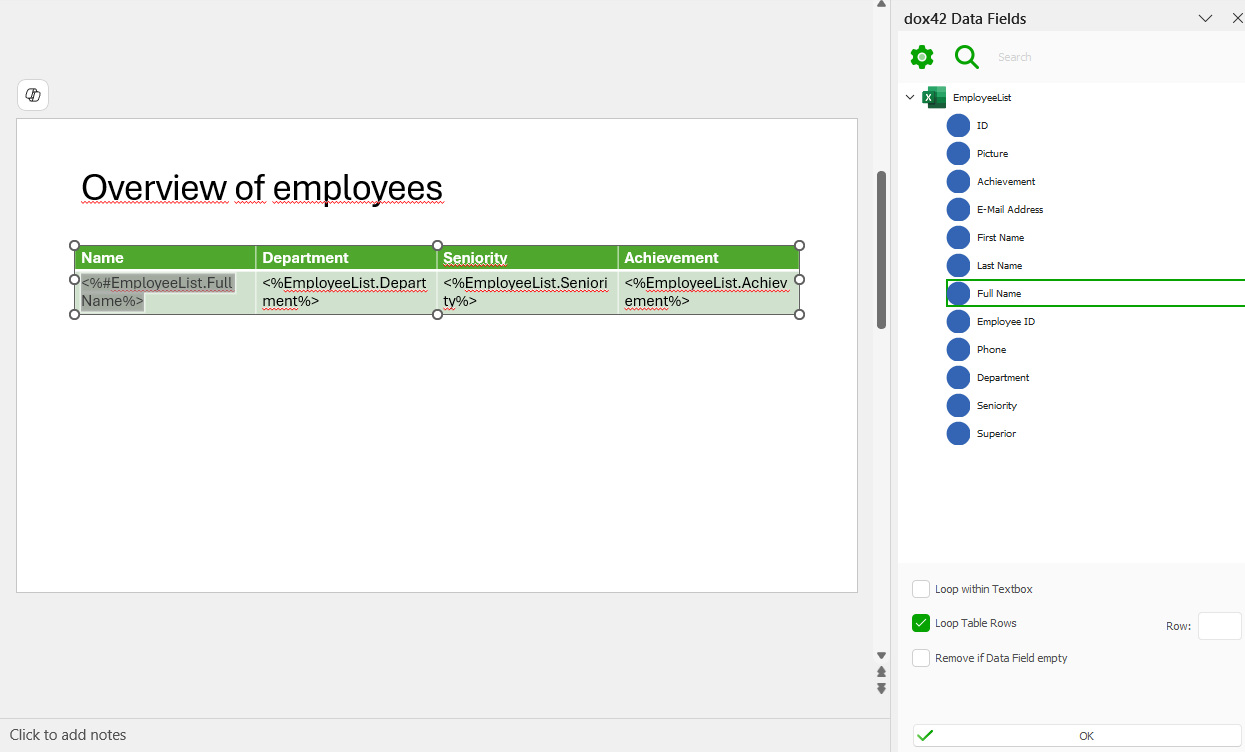
Configuration of a dynamic table
Save the PowerPoint template.
Result
You have configured a dynamic table in your PowerPoint template. When you generate the document, the table will include all rows from the data source.
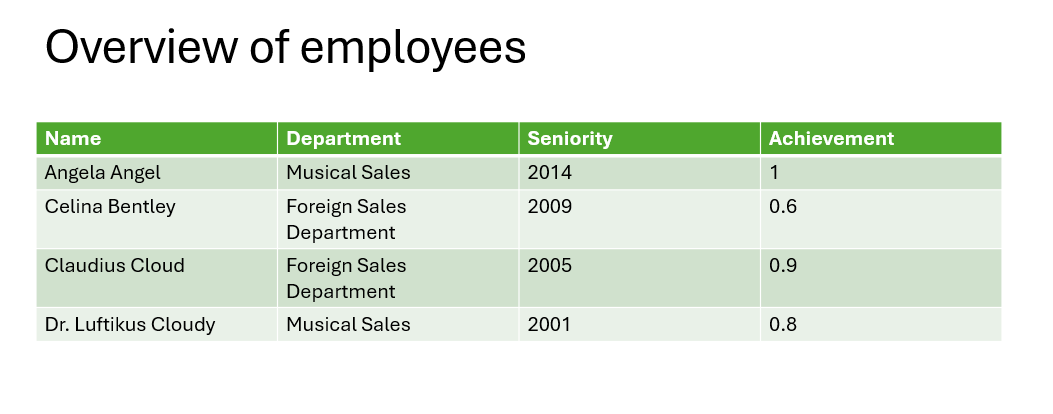
Example of a generated dynamic table in PowerPoint