You can configure a data field to include data from a specific row of the data source. For instance, you could add the team lead’s name to the overview of employees.
Steps
Open your PowerPoint template.
Select or insert the desired data field.
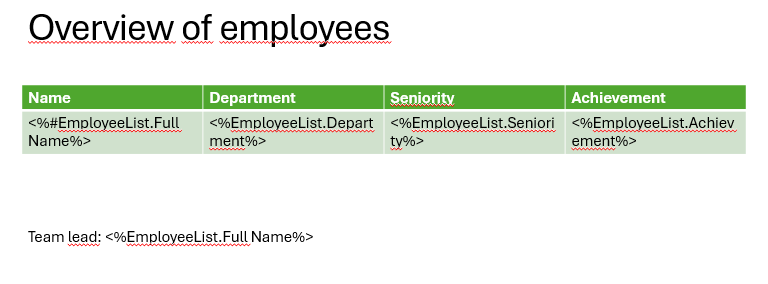
Example: Overview of employees with team lead info at the bottom
In the dox42 Data Fields pane, go to the Row text field and enter the value of the desired row in the data source.
In this case, we know that row 2 includes the data from the team lead.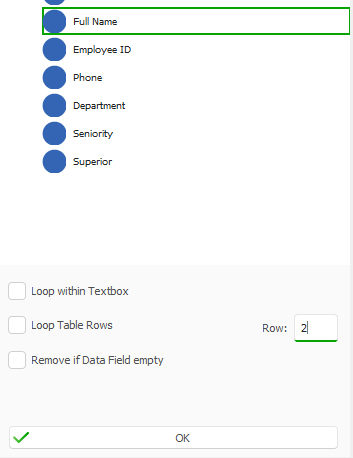
dox42 Data Fields pane
Select OK.
The configured data field in the template includes the row number in square brackets ([n]).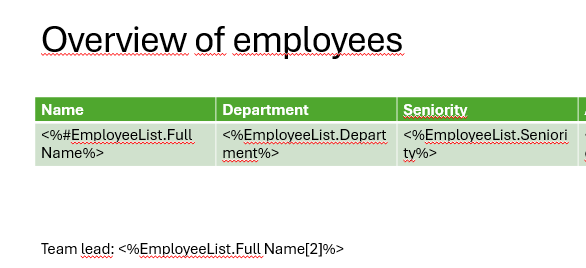
Configuration of data row
Save the PowerPoint template.
Result
You have configured a data field to include data from a certain row of the data source. When you generate the document, only the data from this row will be included.
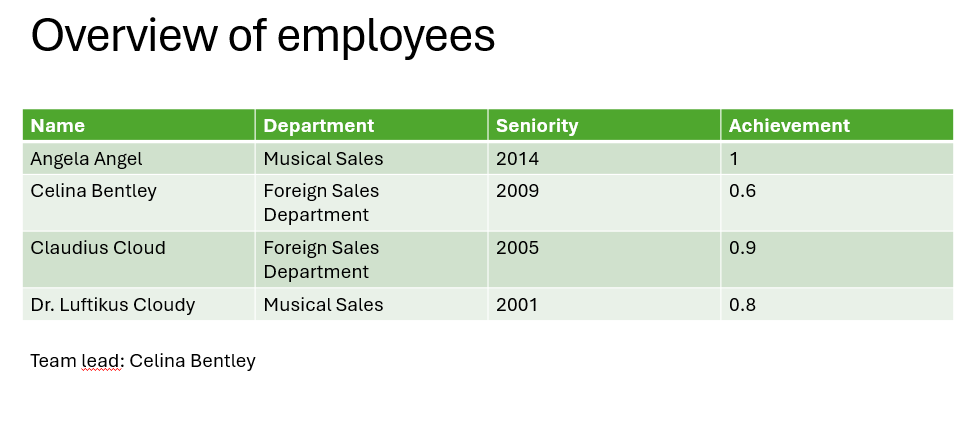
Example: Inserted data field with specific row information from the data source